sealos.io
Ghost
Build production-ready blog templates with Sealos.
https://ghost.org/deploy now
Ghost
Blog
Open-source publishing, newsletter, membership, and subscription platform for independent creators and teams.

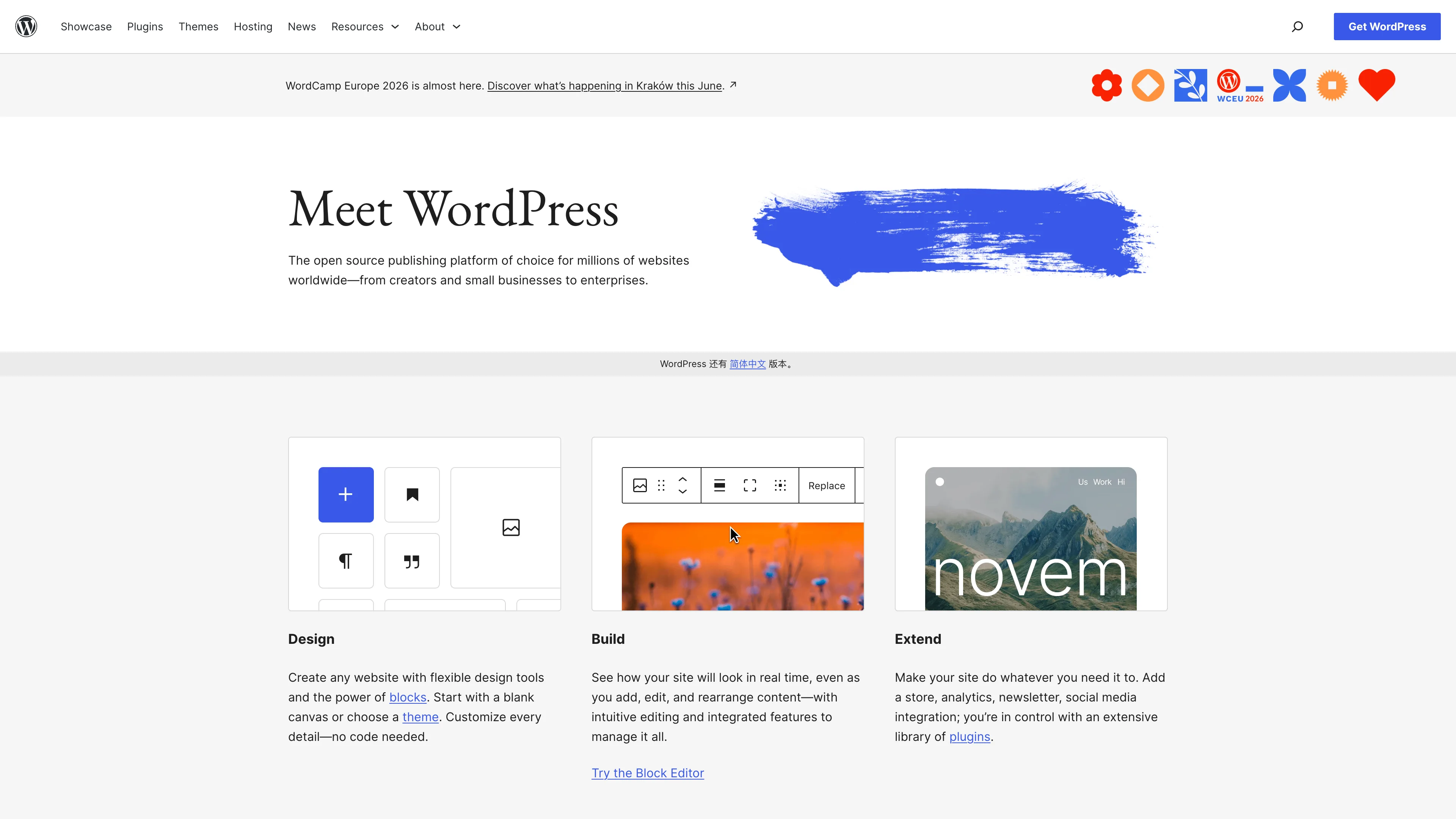
WordPress is a powerful, user-friendly and open source content management system (CMS) that can be used to publish websites, news, blogs and other content on the Internet.
Launch in your Sealos workspace.
Start with the resources defined by the WordPress template. Review CPU, memory, persistent storage, and network allocations for every service in Canvas. Capacity needs depend on your data and workload; monitor usage as they grow.
Template configuration and setupUse the application URL or connection details shown in Canvas. Follow the deployment guide for first-time account setup or client configuration, and keep generated credentials available for that step.
Sealos monthly plans include compute, memory, storage, and traffic. Size your plan for all deployed services. Software licenses and external AI or API services may have separate terms and charges. Confirm the applicable plan and optional charges in Cost Center.
Compare Sealos resource plansFor current cloud charges, refer to Sealos plan pricing. Upstream documentation may reference earlier billing models.
WordPress is an open-source content management system for publishing websites, blogs, news, and other web content. This template deploys WordPress 7.0.0 with KubeBlocks MySQL, persistent site storage, an HTTPS Ingress, and a Sealos App entry.
The template runs the official WordPress image behind a managed Kubernetes Service. WordPress files, themes, plugins, and uploads are stored on a 1 GiB persistent volume mounted at /var/www/html, so application content survives pod restarts.
KubeBlocks MySQL ac-mysql-8.0.30-1 stores the WordPress database. An idempotent initialization Job creates the mydb database after MySQL becomes reachable. Sealos configures the generated HTTPS hostname and exposes it through the Sealos App entry.
7.0.0 listens on port 80.mydb database and a 1 GiB data volume.mydb with the managed MySQL connection Secret and exits after successful initialization./var/www/html volume stores core files, themes, plugins, and media uploads.Sealos is an AI-assisted Cloud Operating System built on Kubernetes. The template packages WordPress, MySQL, storage, HTTPS routing, and an App entry so a content site can start with one deployment.
This template has no additional deployment inputs. Sealos generates the application name and host, and KubeBlocks generates the database connection credentials.
/wp-admin/install.php. Choose the site language, enter a site title, create the first administrator username and password, then submit the form./wp-login.php with that administrator account. The dashboard is available at /wp-admin/.Use the Canvas resource cards to increase WordPress CPU or memory and to expand the /var/www/html volume as media and plugins grow. Sealos is built on Kubernetes and follows a pay-as-you-go resource model. Back up both the WordPress volume and the MySQL data before a migration or major plugin upgrade; use the Canvas AI dialog for configuration requests.
WordPress receives the MySQL host, port, username, password, and database name from the managed connection Secret. The Ingress allows 32 MiB request bodies and keeps long uploads within a 300-second proxy timeout.
Check that the MySQL Cluster is Ready and that the wordpress-mysql-init Job completed. Re-run the Job only after confirming the connection Secret points to the current MySQL Service.
Inspect the /var/www/html volume capacity and the Ingress request limit. Increase storage for large media libraries and keep individual uploads below the configured 32 MiB request limit.
Open the Ingress and App resources in Canvas and confirm the generated app_host value. Update WordPress Address and Site Address from the WordPress settings after changing a custom domain.
This Sealos template is provided under the templates repository license. WordPress is distributed under the GNU General Public License version 2 or later.
A shorter path from an app you want to an app you can run. Sealos brings deployment and ongoing operations into one place.
Start with a ready-made template. Review its configuration and launch from the Sealos console.
Run on managed infrastructure with built-in workload scheduling and recovery.
Give your application a public HTTPS endpoint with certificates managed for you.
Keep application data on persistent volumes across container restarts.
Adjust CPU, memory, and replicas from the console as your workload changes.
Sealos provisions the resources defined by your template and brings them together in your workspace.
Container workloads with configurable CPU, memory, and replicas.
An address for your app, with managed TLS certificates.
A database provisioned alongside your app when the template calls for one.
Storage for the files and data your application needs to keep.
Application settings and secrets configured in one place.
Inspect container logs and resource usage from the console.
Resources and their configuration vary by template. Review the deployment form for this app’s exact setup.
Explore more production-ready templates.
Build production-ready blog templates with Sealos.
Open-source publishing, newsletter, membership, and subscription platform for independent creators and teams.
Build production-ready blog templates with Sealos.

Launch a Flarum community forum on Sealos with discussion threads, moderation tools, persistent storage, and a managed MySQL database.
Build production-ready blog templates with Sealos.
PalaCMS is a modern content management system built for developers and content creators