An Ubuntu VPS you already rent can run a full Eaglercraft world: the browser client, the WebSocket gateway, a Paper 1.8.8 game server, and the Server Management Panel. This walkthrough installs yangchuansheng/eaglerXserver release 2.2.7 on Ubuntu 24.04, runs four systemd units, terminates HTTPS with Caddy, and finishes with a backup and a restore rehearsal.
While the upstream documentation focuses on Docker, deploying directly under systemd gives you full control over processes, system resources, and local storage.

Opens the Eaglercraft template in a new tab to start with a managed deployment.
What This Guide Builds
One Java process serves both the browser client page and the game WebSocket on port 5200. The Server Management Panel runs as a separate Python process on 5201, communicating with the game server over RCON on 127.0.0.1:25575.
Resource demands are modest: after startup, the gateway uses around 235 MiB, Paper uses around 430 MiB, and the panel uses 16 MiB. Plan on roughly 1 GiB of memory for the game stack plus room for the operating system. A clean world snapshot of a fresh map is roughly 4.8 MB.
Before You Start
- An Ubuntu 22.04 or 24.04 server with
sudoprivileges (tested on Ubuntu 24.04.4 LTS with kernel7.0.0-31-generic). - Two vCPU and at least 4 GiB of memory for a small group.
- Java 21,
tmux,unzip, andcaddyfrom the distribution repositories. - A domain with an
Arecord you can point at the server when you want access from outside your network. - Agreement to the Minecraft EULA. The runtime requires
eula=truebefore Paper starts.
Install the Runtime
Install the packages the runtime needs:
Create a dedicated account. The service needs no login shell, so the account gets /usr/sbin/nologin and /opt/eaglercraft as its home directory:
Release 2.2.7 publishes a source archive rather than separate compiled binaries, so download the tag archive directly:
The archive carries both game versions and both browser clients. Publish the 1.8 pair through the symlinks the runtime reads, accept the EULA, and hand the tree to the service account:
Configure the Environment File
Every unit reads /etc/eaglercraft/eaglercraft.env. Create it with mode 0640 so the service account can read it and other local accounts cannot:
Generate a random RCON password and write it to server.properties:
PUBLIC_GAME_URL carries the public address friends will use. The Server Management Panel reads it to generate the Overview connection card. When unset, the API returns {"source": "inferred", "game_url": ""} and defaults to ws://127.0.0.1:5200/. Setting PUBLIC_GAME_URL configures the correct public join address for visitors.
Run the Services Under systemd
Four units run the stack. The gateway holds the WebSocket listener, the game server runs inside a tmux pane so the panel can restart it, the panel serves the admin interface, and a timer snapshots the world each night.
| Unit | Process | Typical footprint |
|---|---|---|
eaglercraft-gateway.service | bungee/run.sh and its Java process | 233.3 MiB memory, 8.9 s CPU after five minutes |
eaglercraft-paper.service | bin/paper-tmux.sh supervising the Paper pane | KillMode=mixed, TimeoutStopSec=60 |
eaglercraft-panel.service | python3 script/http_server.py | 15.7 MiB memory |
eaglercraft-backup.service and .timer | bin/backup.sh once a day | 252 ms CPU for one snapshot |
The gateway unit ships in full here because it holds the security settings worth reading before you enable it:
The remaining units, the tmux configuration, the backup script, and the environment template live in the upstream deploy/ubuntu-vps/ directory.
Because the eaglercraft account uses /usr/sbin/nologin as its login shell, bin/tmux.conf pins the shell for spawned panes and keeps a crashed process addressable for the panel:
bin/paper-tmux.sh starts the tmux server with -f bin/tmux.conf. bin/backup.sh and the panel then send keys over the socket path in TMUX_TMPDIR. Without this configuration, the pane exits immediately upon spawning and the panel reports the game server as offline.
Install the units and start them in order:
Confirm the intended exposure before you put anything in front of the server:
Confirm that the gateway listens on 127.0.0.1:5200, Paper on 127.0.0.1:25565, RCON on 127.0.0.1:25575, and the panel on 0.0.0.0:5201. The listener block in bungee/plugins/EaglercraftXBungee/listeners.yml sets address: 127.0.0.1:5200, while line 1955 of script/http_server.py binds the panel to 0.0.0.0 with no environment override. Treat the host firewall as the control that keeps 5201 off the network.
Point a Domain at the Server with Caddy
Caddy answers the browser and forwards both the client page and the WebSocket upgrade to the gateway. Write the site block with your own hostname:
Check the file before you load it, then reload:
The gateway relies on the header_up line. The shipped listener sets forward_ip: true together with forward_ip_header: X-Real-IP, so the gateway reads that header on every connection and drops requests arriving without it. A direct request to 127.0.0.1:5200 without the header receives no response, while requests routed through Caddy return 200 with the client title EaglercraftX 1.8.
Caddy automatically requests a TLS certificate on startup once public DNS points to your server with inbound ports 80 and 443 open. Then https://play.example.com/ serves the web client and wss://play.example.com/ handles game traffic over the same secure connection. Running caddy validate verifies this configuration syntax and the automatic HTTP-to-HTTPS redirect. Certificate issuance and live wss:// browser sessions require your public domain and appear in What This Guide Did Not Test.
Open the Firewall
Allow SSH, HTTP, and HTTPS, and let the default deny policy cover the rest:
This ruleset permits inbound traffic only on ports 22, 80, and 443 under a default deny policy. The internal service ports (5200, 5201, 25565, and 25575) remain blocked from external access.
Join From a Browser
Open https://play.example.com/ and press a key when the client asks for input. Release 2.2.7 preconfigures the server, so the entry appears in Multiplayer with the message of the day from listeners.yml.
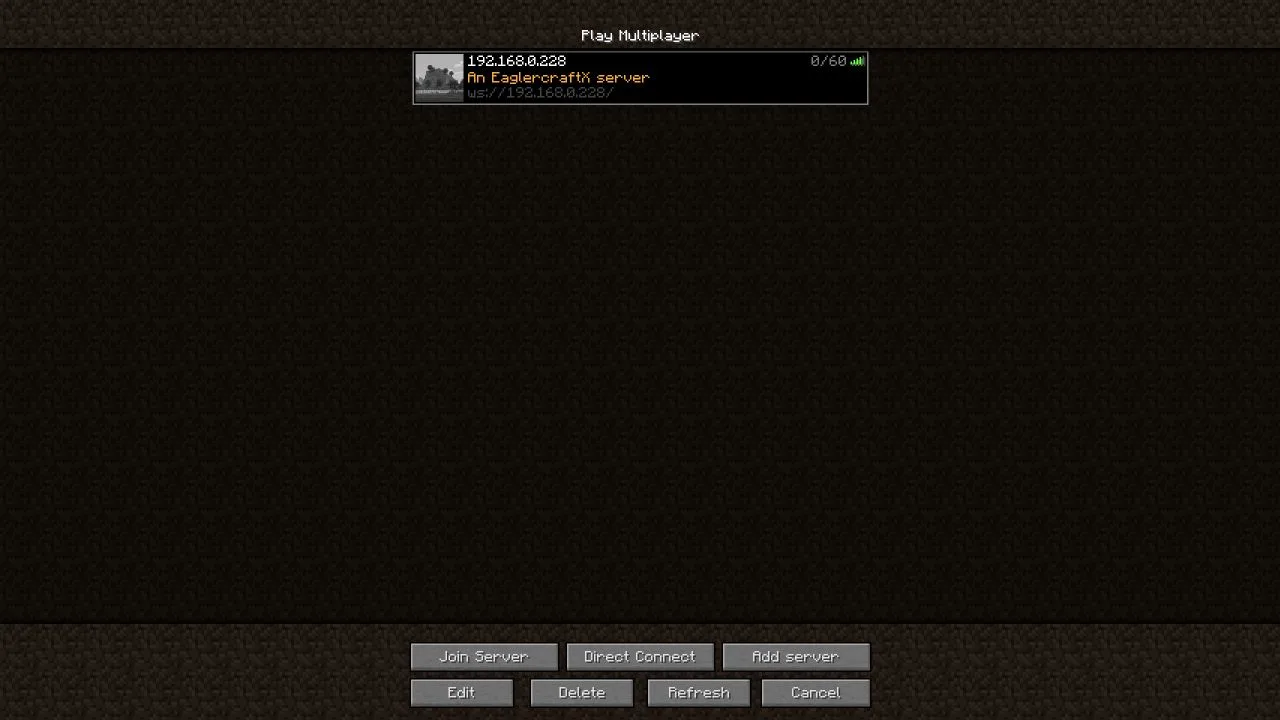 Eaglercraft Multiplayer server list showing the server entry and the An EaglercraftX server message of the day.
The default listener allows 60 connections. Set a stable player name of 3 to 16 characters in Edit Profile, keep the exact capitalization for later visits, and select the entry to connect.
Registration expects a command within 30 seconds of connecting. Press T, enter /register <player-password>, and press Enter. Each player picks a separate password, and the RCON password from the environment file stays on the server.
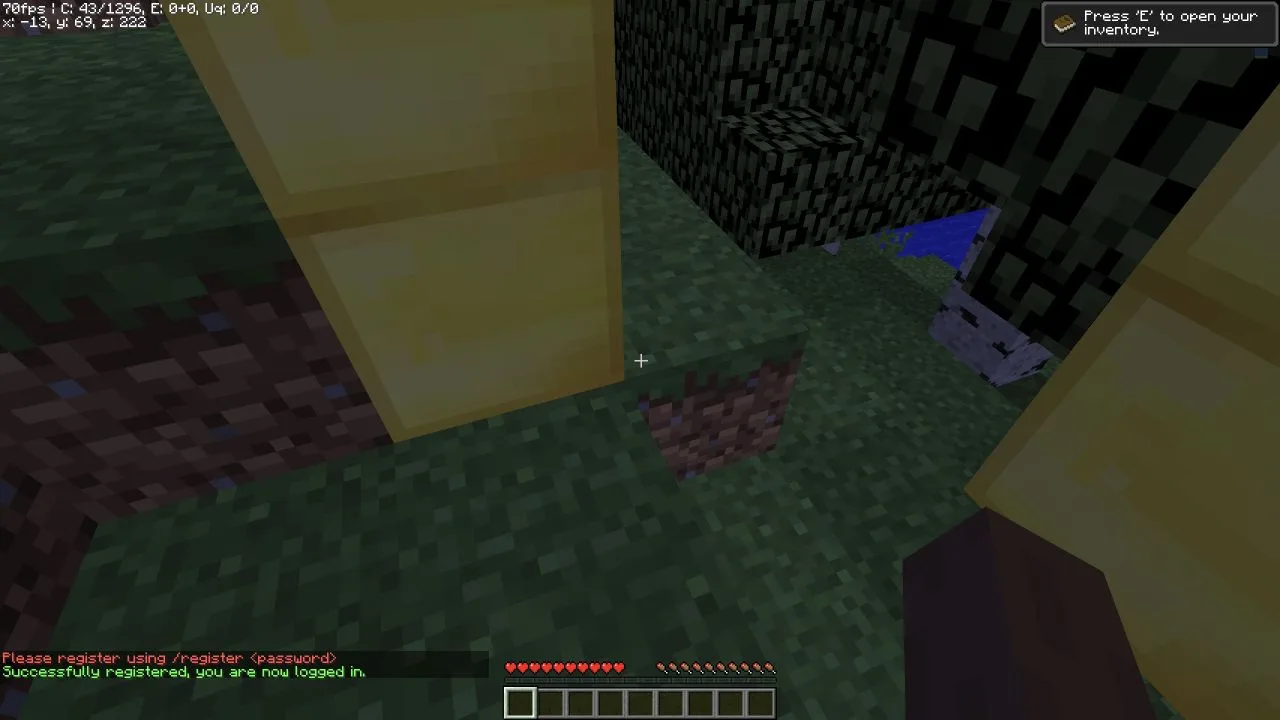 In-game chat displaying a successful player registration message in Eaglercraft.
Later visits use /login <player-password> with the same name and password.
Reach the Server Management Panel Through an SSH Tunnel
The panel answers on 0.0.0.0:5201, and its bind address has no environment override. Forward the port over an SSH tunnel to keep it private:
Leave that command running and open http://127.0.0.1:5201/admin. Enter the RCON password from /etc/eaglercraft/eaglercraft.env.
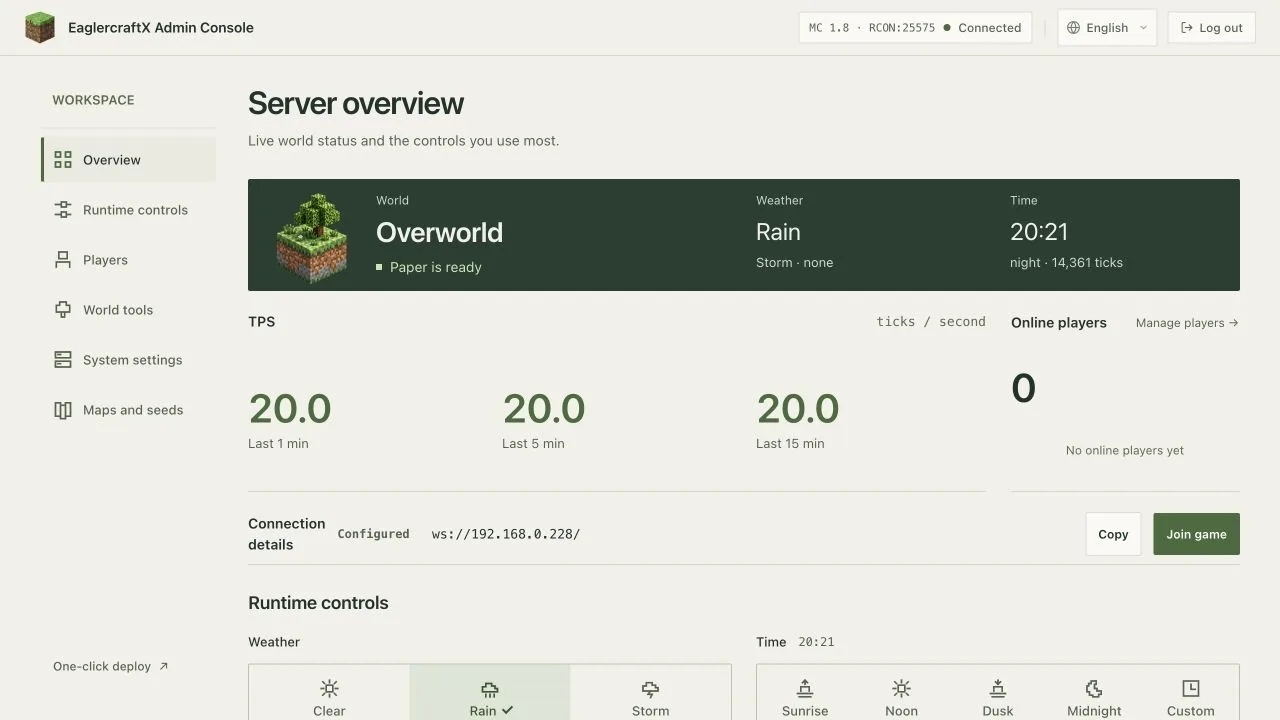 Eaglercraft Server Management Panel Overview showing RCON Connected, Paper ready status, TPS gauges, and connection details.
Once signed in, the panel confirms Paper is ready, TPS 20.0 across the one, five, and fifteen minute windows, and current player counts. The Connection details card on the same page displays the address driven by PUBLIC_GAME_URL.
Two harmless log warnings appear on every start from bundled plugins: dynmap raises NoClassDefFoundError: org/bukkit/attribute/Attribute, and SimpleTpa runs an update check. The server operates normally despite both.
Back Up the World and Rehearse a Restore
bin/backup.sh asks the running server to save, writes a timestamped archive of world, world_nether, and world_the_end, and prunes snapshots older than seven days. The timer runs it at midnight and catches up after downtime because Persistent=true.
Run one snapshot by hand and check the result:
The snapshot finishes with Result=success and creates an archive in /var/backups/eaglercraft/. A backup you have never restored is only a guess, so rehearse the restore using an identifiable in-game marker:
- Place a distinctive block and note its coordinates.
- Save through RCON and start
eaglercraft-backup.service. - Stop the game server with
sudo systemctl stop eaglercraft-paper. - Move the three world directories aside, unpack the newest archive into
/opt/eaglercraft/server, and start the game server again. - Return to the coordinates and confirm the block is there.
In our drill, an emerald block was placed at -11 72 222 beside three gold blocks at -15 70 222, -11 71 222, and -13 71 224. After removing the emerald block, deleting all three world directories, and unpacking the snapshot, the emerald returned intact along with the gold blocks.
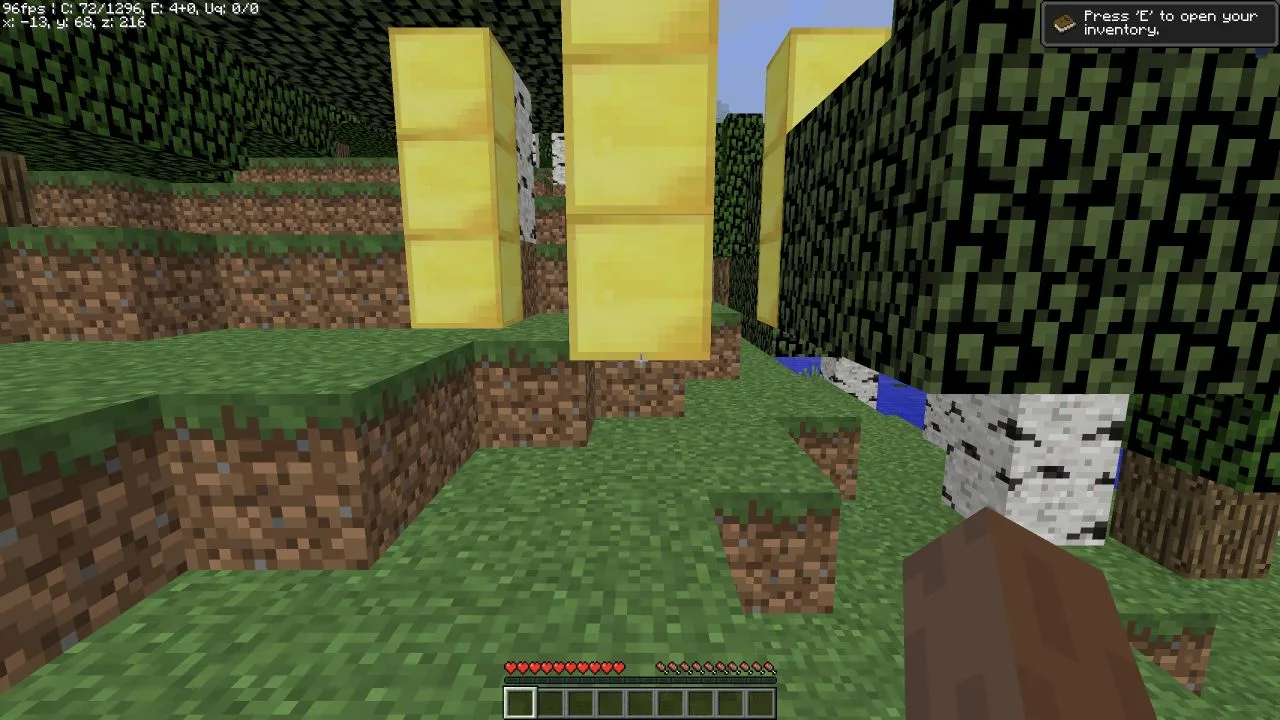 Restored Minecraft world showing the emerald and gold marker blocks intact after restoring the backup snapshot.
The first version of bin/backup.sh sent save-all flush to the console. On Java 21 with Paper 1.8.8 that wedged the chunk I/O thread: the console printed All chunks are saved without stopping, RCON stopped answering, and the active log grew to 4,374,236,066 bytes in about five minutes, holding 49,147,793 copies of that message. Plain save-all reports Saving...Saved the world and returns within a second, which is what the shipped script uses now.
Reboot and Confirm Recovery
Every unit carries an [Install] section, so systemd restores the whole stack automatically upon reboot. Once the machine comes back online, all four units return to active, services resume on their designated ports, and saved world state remains intact.
Once the machine answers again:
Upgrade to a New Release
Keep the versioned directories the archive creates and repoint the two symlinks:
Take a snapshot first and keep the previous directory in place, so the change reverses by pointing the symlink back. This guide installed 2.2.7 on a clean machine and did not exercise a release-to-release upgrade.
Troubleshoot the First Join
| What you see | Next check |
|---|---|
| The page loads and the game connection fails | Confirm header_up X-Real-IP {remote_host} is in the Caddy block, then sudo systemctl reload caddy. |
| The entry disappears from the server list | Check sudo systemctl status eaglercraft-gateway and the listener address in listeners.yml. |
| Nothing answers on the domain | Check the A record, then sudo ufw status and the Caddy journal for a certificate error. |
The client reports Login timed out! | Reconnect and submit /register <player-password> within 30 seconds. |
| The Overview card offers a loopback address | Set PUBLIC_GAME_URL in /etc/eaglercraft/eaglercraft.env and restart eaglercraft-panel. |
| The panel is unreachable | Confirm the SSH tunnel is running and that 5201 stays closed in ufw. |
| A save never returns | Use save-all and avoid save-all flush on Java 21 with Paper 1.8.8. |
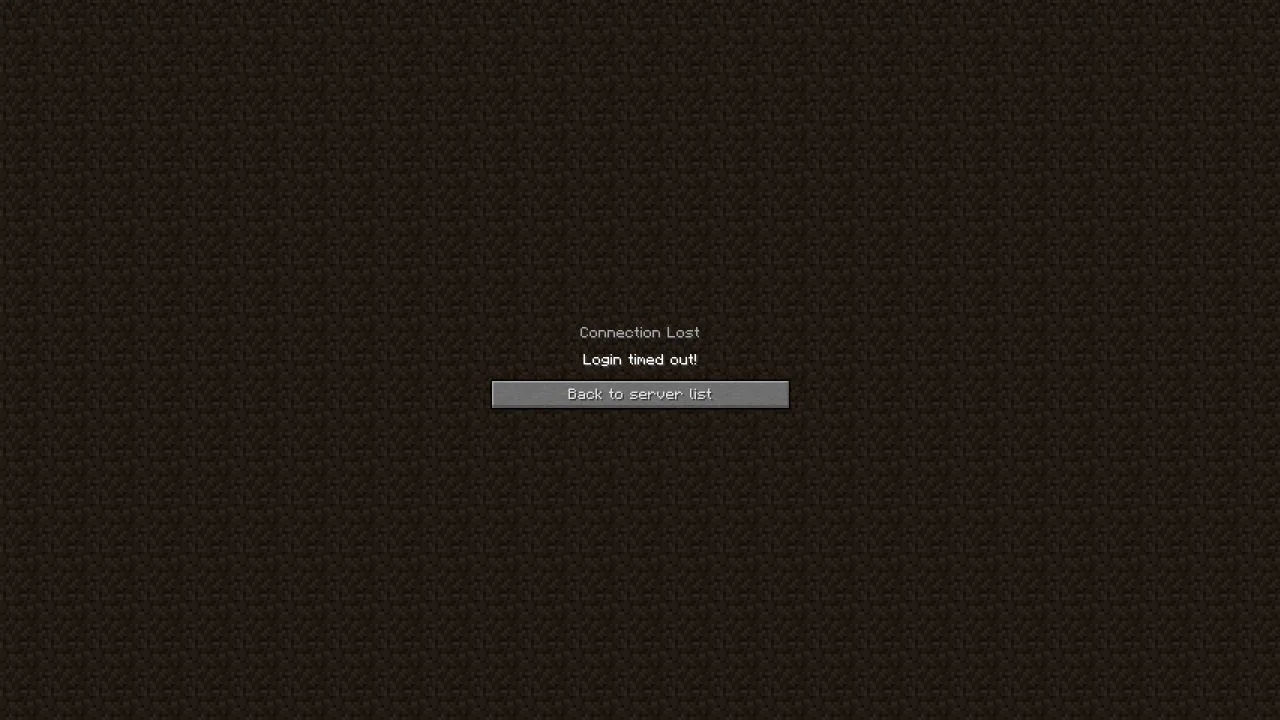 Eaglercraft browser client displaying the Login timed out error screen after the registration window expires.
What This Guide Did Not Test
This guide covers direct host deployment, systemd supervision, backups, restores, the admin panel, and browser access on an Ubuntu VPS. The following surfaces require your own verification for your environment:
- Public DNS resolution for a real hostname.
- Certificate issuance and renewal through Let's Encrypt.
- A
wss://game connection over TLS from a browser. - Inbound reachability from the public internet, including any provider firewall or security group in front of the machine.
- A second machine joining the server, and player capacity beyond one session.
- Upgrade and rollback of the runtime from one release to the next.
Where Sealos Fits
The steps above hand you the runtime, the gateway, the certificate, the world data, and the update path. Running them yourself suits a server you already pay for and control.
The Eaglercraft template on Sealos packages the same client, gateway, Paper, and admin console behind one deployment form, with a persistent volume for the world and no package management on your side. The setup walkthrough covers that path from deployment to a friend joining, and Eaglercraft Hosting Costs compares what each path costs to run and maintain.
Opens the Eaglercraft template in a new tab.