Friends can reach the Eaglercraft page while the multiplayer connection fails in the background. Trace the failure across four diagnostic boundaries: Client Reachability, WebSocket Handshake, Backend Session, and Game Login. Each boundary surfaces unique log signatures and requires its own fix.
Quick answer
For most “friends can’t connect” failures, copy the current public WebSocket Server Address from the running application and verify it starts with wss://. In the September 2026 Sealos check, eaglercraft-server-2 displayed wss://eaglercraft-lewgjfye.usw-1.sealos.app/; a 502 points to the public route or upstream, while 1006 or a close after 101 requires matching gateway, proxy, and Game Server logs.
This guide uses Eaglercraft 1.8.8 as the primary evidence version and treats Eaglercraft 1.12.2 as a compatibility smoke test. The examples cover a Sealos deployment, an Ubuntu VPS with Paper and Caddy, and a Windows or home-network host using a Tunnel. The client, server, and WebSocket gateway overview explains the same components before you start collecting logs.
60-Second Triage
| Symptom | First boundary | Check first | Likely next action |
|---|---|---|---|
| Browser Play Link does not load | Client Reachability | DNS, TLS certificate, public URL, browser Console | Repair the public HTTPS route. |
Page loads, friend sees 502 Bad Gateway | WebSocket Handshake | Proxy or Tunnel upstream, listener, readiness, and proxy log | Restore the route to the gateway. |
Network shows 101, then the socket closes | Backend Session | Gateway, proxy, version, and server logs at the same timestamp | Continue from transport into session diagnosis. |
Browser reports close code 1006 | WebSocket Handshake or Backend Session | Browser Network/Console plus proxy, Tunnel, and gateway evidence | Correlate the first missing or closed hop. |
| Page and socket work, login fails | Game Login | Client version, server version, plugin name, and command syntax | Use the correct authentication path. |
| Local join works and a friend fails | External reachability | NAT, double NAT, CGNAT, firewall, Tunnel, and public DNS | Test from an independent network. |
When troubleshooting with friends, capture the client version, server version, public URL, WebSocket Server Address, browser console output, timestamp, network scope, status code, close code, and matching server log lines. Having these details isolates the failing hop without repeating every setup step.
Symptom → Check → Fix
| What you see | Check | Fix |
|---|---|---|
| Browser page is blank or returns a certificate error | Open the HTTPS URL in a private window; inspect DNS and certificate hostname | Correct DNS, certificate coverage, or the public Browser Play Link. |
| Browser page loads but the configured server entry fails | Compare the WebSocket Server Address with the public host and path shown by the deployment | Use the exact WSS address generated for the current application. |
502 Bad Gateway | Check proxy upstream, gateway listener, required X-Real-IP forwarding, and service readiness | Point the proxy at the live gateway and reload it after validation. |
101 Switching Protocols followed by a close | Match browser, proxy, gateway, and Game Server timestamps | Fix the first component that closes the session, then retest with the same client. |
Close code 1006 | Capture the request, Console event, Tunnel/proxy log, and gateway log together | Repair the missing route, timeout, process exit, or compatibility mismatch indicated by the evidence. |
| Server list appears but login fails | Confirm Eaglercraft and Paper versions, plugin, player name, and command | Follow the installed plugin's registration and login syntax. |
| Local-only success | Join on the host, then from LAN, then from a separate network | Move through the network scopes and repair the first scope that fails. |
The Four Diagnostic Boundaries
1. Client Reachability
The Browser Play Link is an HTTPS page. It delivers the browser client and static assets. A successful page load establishes Client Reachability and leaves multiplayer connectivity to the remaining checks.
Check the following in the browser:
- Open the exact public HTTPS URL in a private window.
- In Network, confirm the document and static assets return expected responses.
- In Console, record certificate, mixed-content, JavaScript, and WebSocket errors.
- Confirm that the page-generated server entry uses the current public host.
If the page loads while the WebSocket URL points at 127.0.0.1, a private address, an old application host, or the wrong path, external players will immediately disconnect. Share the Browser Play Link with a second device only after the page works from the host.
2. WebSocket Handshake
The WebSocket Server Address carries game traffic. For a TLS-protected deployment it begins with wss://; an existing compatible Eaglercraft client uses it in its Multiplayer server field. A browser Network entry with 101 Switching Protocols proves the HTTP upgrade reached a server that accepted the handshake.
The handshake check is complete when the socket remains open long enough to receive the server list and the client can begin a game session. A 101 followed by a close moves the investigation forward to the gateway, backend, version, and authentication boundaries.
For a proxy, verify the public site block, upstream host and port, WebSocket upgrade support, TLS certificate, and forwarded client-IP header. The Ubuntu guide uses Caddy in front of a gateway on 127.0.0.1:5200 and forwards X-Real-IP; the Ubuntu VPS guide contains the full service and firewall path.
For a Tunnel, verify that the connector is running, its public hostname maps to the correct local service, the local gateway is listening, and the Tunnel log records the same connection time as the browser request. A Tunnel can publish the route while the local process is stopped, so public DNS alone does not establish backend readiness.
3. Backend Session
The Eaglercraft Gateway accepts the WebSocket stream and forwards it to the Game Server. Inspect the gateway and Game Server logs when the browser reports a close after a successful 101.
| Evidence | Question it answers |
|---|---|
| Browser Network and Console | Did the browser request the expected WSS host, status, and close event? |
| Proxy or Tunnel log | Did the public route connect to the intended local upstream, and did the upstream close it? |
| Gateway log | Did the Eaglercraft gateway accept the client protocol and open the backend connection? |
| Game Server log | Did Paper accept the session, reject a version, stop, or report a plugin error? |
| Sealos application logs | Was the template Ready, and did the gateway and Paper processes remain healthy? |
Keep the Client Website, Runtime Bundle, Eaglercraft Gateway, and Game Server responsibilities separate while reading logs. A page served by the Client Website can succeed while the Gateway is stopped. A Gateway can accept the handshake while Paper is still starting. A ready application can reject a client with an incompatible protocol or plugin state.
4. Game Login
Once the page and socket remain usable, inspect the login boundary. Keep player credentials, the administrator password, and RCON credentials separate. An administrator or RCON password belongs to the management path; players use their own accounts in the game.
The Sealos template path uses LoginSecurity. Run the command inside the game chat within the plugin's login window:
The generic AuthMe path commonly uses a confirmation argument during registration:
Treat these as two separately labeled paths. Plugin configuration, aliases, password rules, and login windows can change. Read the running server's plugin documentation or prompt, verify the command on the execution day, and never place an administrator or RCON password in a player command.
Network Scope: Local, LAN, and External
Use three explicit labels in every retest:
| Scope | Definition | What it proves |
|---|---|---|
| Local-only success | The host reaches its own Browser Play Link or local gateway | The local process and part of the local route work. |
| LAN success | A second device on the same private network joins | Local routing and host firewall permit the path. |
| External-network success | A friend joins from a separate ISP or mobile network | Public DNS, TLS, NAT/firewall, proxy or Tunnel, and the public WSS path work together. |
Local-only success can coexist with external failure under NAT, double NAT, CGNAT, an inbound firewall, a cloud security group, or a Tunnel configured for a different local port. Run the final check from the user's actual network scope. A second browser tab on the same host is a useful comparison and cannot prove external reachability.
Environment Branches
Sealos template
Open the Eaglercraft template on Sealos and wait for the application to report Ready. Inspect application logs, the generated Browser Play Link, the WebSocket Server Address, and the management panel's Paper readiness before asking a friend to join. The first-join walkthrough records the 1.8 path, LoginSecurity commands, public entry points, and retained-world check.
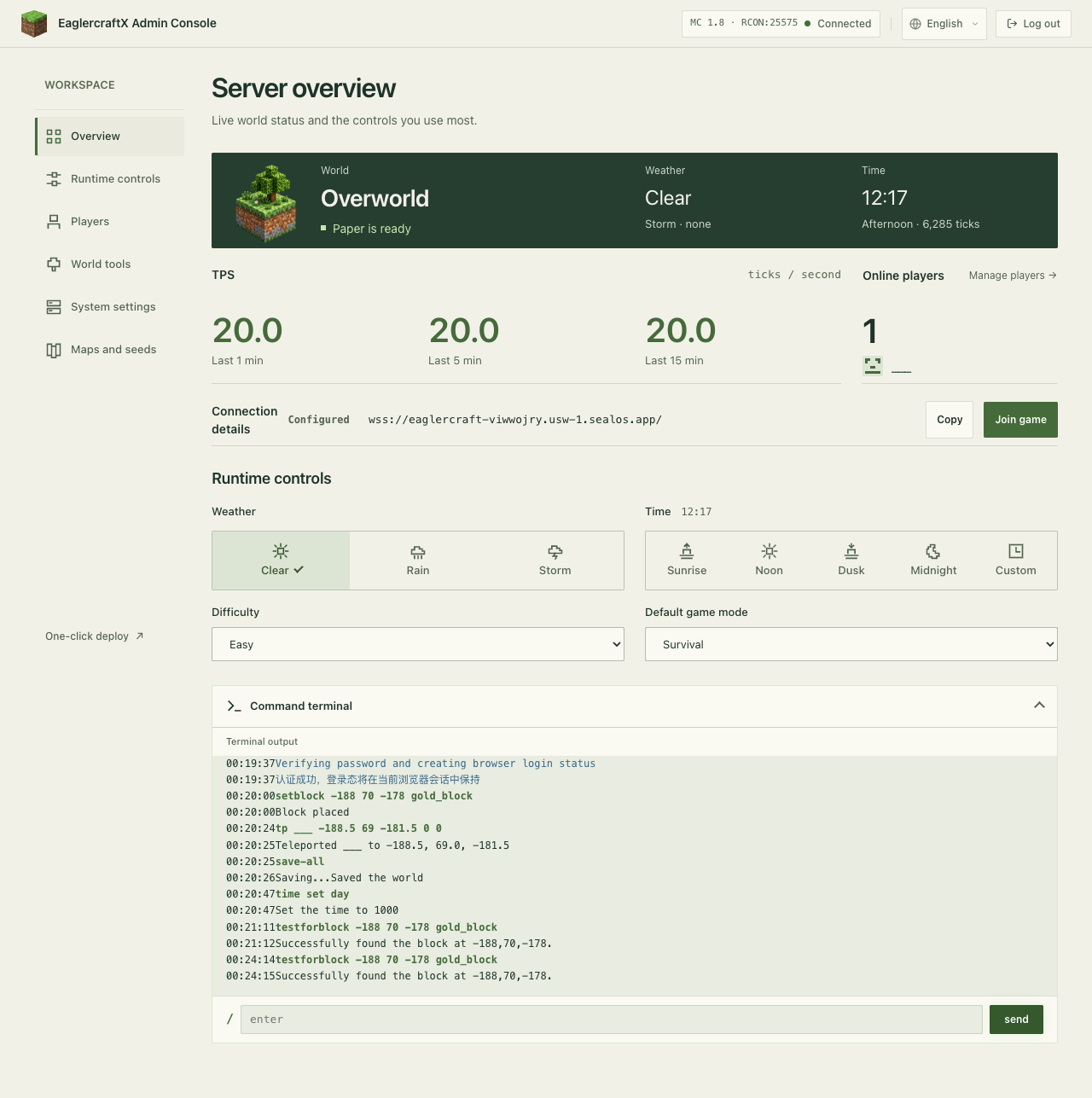 Sealos Eaglercraft management panel showing Paper ready status, a connected player, and the saved world marker check.
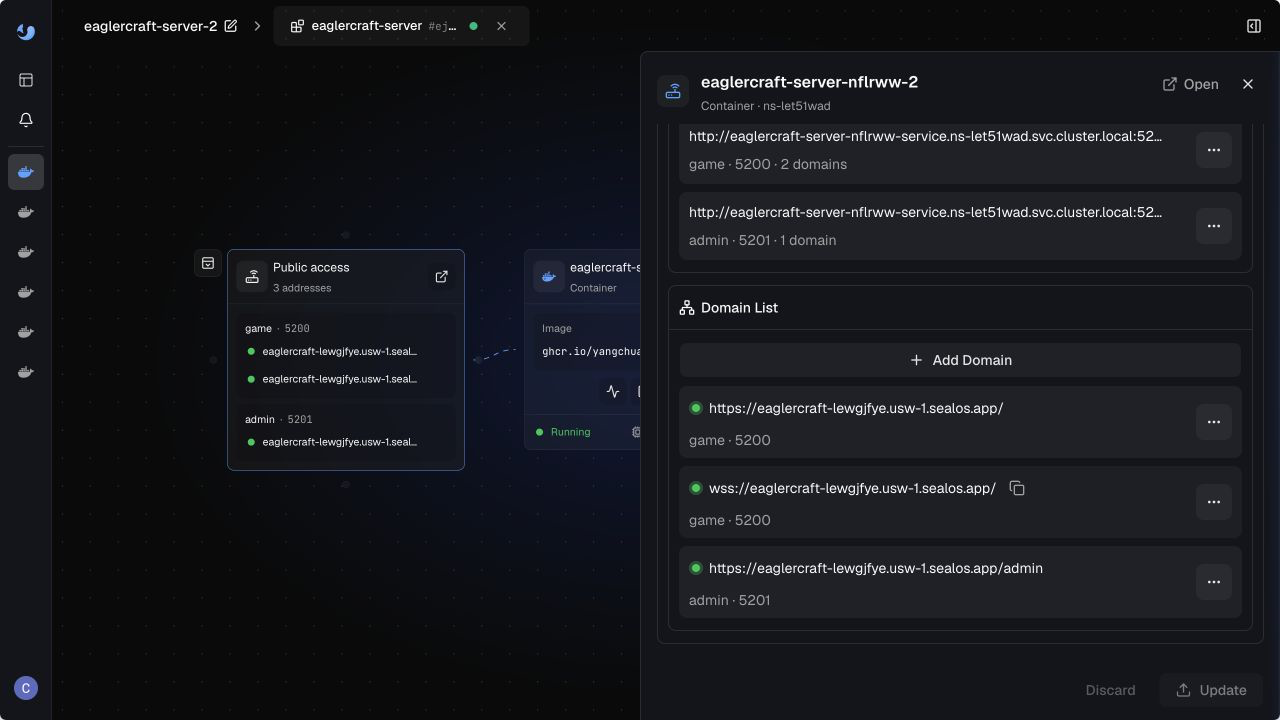 Sealos Cloud application details for eaglercraft-server-2 showing the generated public WebSocket Server Address.
During the September 2026 verification, the Sealos application eaglercraft-server-2 displayed this generated public WebSocket Server Address:
| Observed evidence | What it proves | Next check |
|---|---|---|
eaglercraft-server-2 displayed the wss:// address above | The application exposed a public WebSocket endpoint for the current deployment | Copy the current value into the Eaglercraft Multiplayer server field |
Eaglercraft 1.12.2 page returned HTTP 200 | The client page reached the local runtime | Test the generated WSS endpoint |
Raw WebSocket upgrade returned 101 Switching Protocols | The gateway accepted the HTTP upgrade | Confirm that the socket stays open and the server list arrives |
Management API reported Paper ready | The Game Server reported ready state | Test player login and a second-network join |
LoginSecurity failed on macOS arm64 because SQLite lacked Mac/aarch64 | The local login result had a runtime-specific limitation | Repeat Game Login on the target Linux/amd64 deployment |
Use this sequence:
- Select Eaglercraft 1.8 for the primary check and record the server and application release.
- Confirm the application is Ready and Paper is ready.
- Open the Browser Play Link and inspect the generated WSS entry.
- Join as one player, register or log in, then ask a friend on an independent network to join.
- Capture application logs at the time of any
502,101close,1006, or login failure. - Run the Eaglercraft 1.12.2 compatibility smoke test separately and record whether page load, handshake, backend session, and game login each pass.
The recorded local 1.12.2 smoke test served the Eaglercraft page with HTTP 200, completed a raw WebSocket upgrade with 101 Switching Protocols, and reported Paper ready through the management API. LoginSecurity failed to initialize its SQLite database on the macOS arm64 test host because the bundled library had no Mac/aarch64 native binary. Page reachability, the WebSocket Handshake, and Backend Session passed in this run; Game Login requires a Linux/amd64 runtime check before the result applies to a production deployment.
The template packages the Client Website, Gateway, Game Server, management panel, and Persistent World into one application. The management surface simplifies readiness and log checks; the same four diagnostic boundaries still apply.
Ubuntu, Paper, and Caddy
The Ubuntu VPS guide runs the gateway, Paper, management panel, and backup timer under systemd. Its tested service layout uses the gateway on 127.0.0.1:5200, Paper on 127.0.0.1:25565, RCON on 127.0.0.1:25575, and the panel on port 5201. Caddy terminates the public route and forwards X-Real-IP.
Use these checks when a page or WSS connection fails:
For a 502, compare the Caddy upstream with the gateway listener, check that the gateway process is active, and verify the required forwarded header. For a local success with external failure, check UFW, the cloud firewall, DNS, certificate coverage, and whether the router or provider uses CGNAT. The Docker Compose guide shows the equivalent container and Caddy overlay path.
Windows or home network with a Tunnel
On Windows, confirm the Java version, PATH, launch directory, gateway port, Windows Defender Firewall rule, and the Tunnel connector's target. A process can run successfully from PowerShell while a service, scheduled task, or Tunnel starts from a different directory and reads different configuration.
For the containerized Tunnel path, use the Docker Compose guide and its Cloudflare Tunnel section. Keep the same browser, gateway, and external-network checks when the host is Windows or a home network.
For a home-network deployment, label each result Local-only, LAN, or External-network. Check router port forwarding, double NAT, CGNAT, firewall scope, Tunnel status, and the public hostname. Capture the Tunnel log beside the browser Network request; the first timestamp where the path disappears identifies the next boundary.
The same sequence applies through a Tunnel:
- Verify the local Browser Play Link or gateway from the host.
- Verify the route from a second device on the LAN.
- Verify the public hostname from a mobile network.
- Compare the browser, Tunnel, and Game Server logs for one failed request.
- Repeat the external check after repair and record the new result.
Four Minimum Failure Cases
Case 1: 502 Bad Gateway
Reproduce this case by routing the proxy or Tunnel to a stopped process, an incorrect port, or an incomplete upstream path in a controlled test environment. Save the browser response, proxy or Tunnel log, listener state, and service status. A 502 indicates that the public intermediary could not complete a valid upstream exchange, leaving the exact cause to the matching service logs.
Repair the first broken hop: start the gateway, correct the upstream host or port, restore the forwarded header required by the gateway, reload the proxy, or correct the Tunnel target. Repeat the Browser Play Link check, the WSS handshake, and the External-network retest.
Case 2: 101 Switching Protocols followed by a close
Capture the 101 response and the close event from the same browser request. Inspect the gateway and Game Server log lines at the same timestamp. Common root causes include a backend still starting, a gateway-to-Paper drop, a version mismatch, a proxy timeout, or a plugin rejection.
Repair the first component that closes the session, then repeat with the same Eaglercraft and server versions. The success condition includes a stable socket, a server list or game session, a clean login, and an External-network retest.
Case 3: close code 1006
1006 is an abnormal-close signal reported to the browser when the socket drops abruptly without a clean close frame. Record the request URL, browser Console event, Network timing, proxy or Tunnel status, gateway log, Game Server log, and network scope. Log correlation distinguishes a process exit from a route drop, firewall timeout, or protocol mismatch.
Repair the evidence-backed boundary. Repeat the check from Local-only, LAN, and External-network scopes. Preserve the successful retest and the matching logs so future reports can compare the same failure shape.
Case 4: page load succeeds and game login fails
When the Browser Play Link loads and the WebSocket session reaches the server list, record the client version, server version, plugin name, player name, login prompt, exact command, and server response. Confirm that the player uses a player password while keeping administrator or RCON credentials separate.
For LoginSecurity, use the Sealos path shown above. For AuthMe, use the generic path shown above only after checking the installed plugin's prompt and configuration. A successful repair ends with a player entering the world, a second-network join, and Recovery Proof that the Persistent World remains available after the approved restart or recovery check.
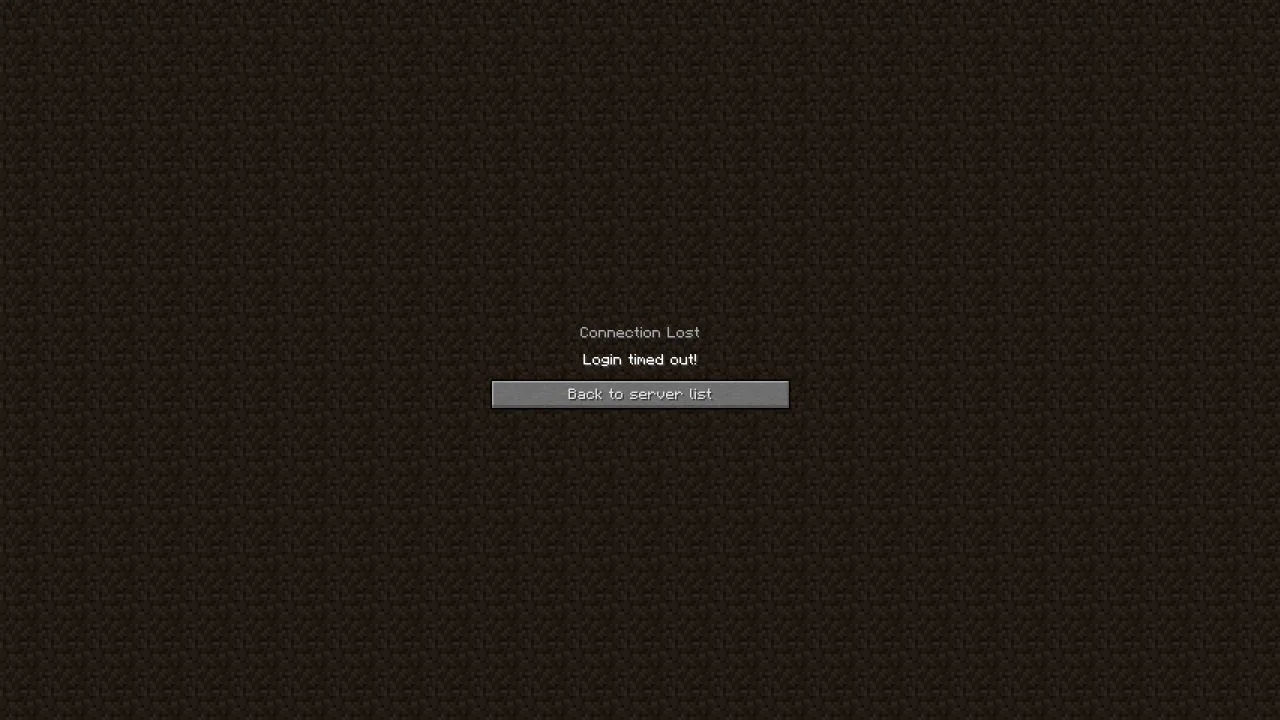 Eaglercraft browser client displaying the Login timed out error after the registration window expires.
Practice Evidence Record
For each test, keep one small record with this shape:
| Field | Example value |
|---|---|
| Environment | Sealos, Ubuntu/Paper/Caddy, or Windows/home-network + Tunnel |
| Client and server | Eaglercraft 1.8.8 primary; 1.12.2 smoke test result |
| Network scope | Local-only, LAN, or External-network |
| Browser evidence | Request URL, status, Console event, close code, timestamp |
| Route evidence | DNS, TLS, proxy or Tunnel log, upstream, listener |
| Runtime evidence | Gateway, Paper, plugin, and application logs |
| Repair | The first failed boundary and exact change |
| Retest | External-network success and Recovery Proof |
Use screenshots of the actual Network or Console state, Sealos readiness or application logs, proxy or Tunnel output, and successful game entry. Give every screenshot a descriptive alternative so a keyboard or mobile reader can follow the same check.
Clean External-Network Retest
After a repair, close stale browser tabs and clear saved server entries that point at an old host. Start from a separate ISP or mobile connection. Open the current Browser Play Link, confirm the generated WebSocket Server Address, join with a compatible client, complete the correct login command, and ask a second player to join.
Record the exact time, network, client version, server version, public host, status, close code, player name, and server response. Re-enter the same Persistent World after the approved restart or recovery check and confirm a recognizable marker. This Recovery Proof closes the loop between a transport repair and a usable server.
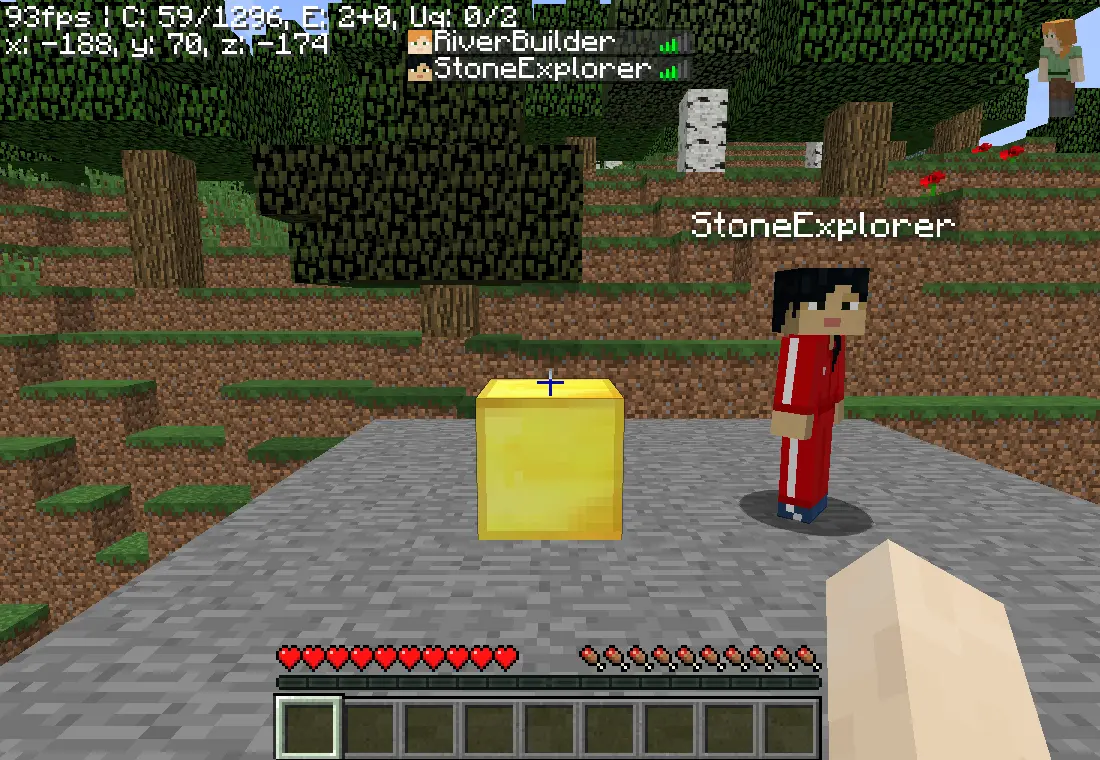 Two Eaglercraft players visible beside the saved world marker in a successful hosted game session.
Choose the Next Path
Use the managed path when DNS, TLS, NAT, Tunnel, readiness, storage, or recurring maintenance is the main constraint:

Open the Sealos Eaglercraft template after identifying the failed boundary. Use the setup and first-join guide for the managed deployment sequence, the Ubuntu VPS guide for systemd and Caddy, and the Docker Compose guide for containers, bind mounts, Caddy, and backups. The Docker Compose to Kubernetes migration guide gives a broader migration path when the current host has become the operational constraint.