A Docker Compose file turns the EaglercraftX server into something you can recreate without fear: one bind mount holds the world, plugins, and server config, so docker compose down && docker compose up -d becomes a routine operation instead of a rebuild. This walkthrough deploys the published image with Compose v2 on Ubuntu, joins from a browser, removes the container to prove the world survives, and then rehearses a full backup and restore with checksums.
The Compose path runs yangchuansheng/eaglerXserver release 2.2.7 from its published image, so the runtime install shrinks to one docker compose up. The systemd equivalent lives in How to Host an Eaglercraft Server on an Ubuntu VPS.

Opens the Eaglercraft template in a new tab to start with a managed deployment.
What This Guide Builds
One container serves the browser client page and the game WebSocket on 5200, and runs the Server Management Panel on 5201. The base Compose file maps 5201 to the host loopback only, so the panel never faces the network; the overlay adds Caddy for the public HTTPS entry point.
Resource use stayed modest on the 2 vCPU / 4 GiB test machine: the whole stack used about 589 MiB of memory after startup, and the initialized data directory measured 380 MB.
Before You Start
- An Ubuntu 22.04 or 24.04 host with
sudoprivileges (tested on Ubuntu 24.04.4 LTS with kernel7.0.0-31-generic, 2 vCPU, 3,911 MiB memory). - Docker Engine with Compose v2 (tested with 29.1.3 and 2.40.3;
docker compose versionmust work). - Roughly 1 GB of disk for the image plus 400 MB for the initialized data directory, and room for backups.
- A domain with an
Arecord pointed at the host when you want access from outside your network. - Agreement to the Minecraft EULA. The runtime requires
eula=truebefore Paper starts, and the image handles it during initialization.
Create the Deployment Directory
The runnable files live in the upstream deploy/docker-compose/ directory. Copy the three files you need and leave the image to initialize the data directory on first start:
Set a real RCON password in .env; it unlocks the management panel, RCON, and save-all backups:
The base compose.yaml pins the image and the data contract:
./data:/eaglerX-1.8-server bind-mounts the host directory so the world survives container removal. stop_grace_period: 45s gives Paper time to save chunks before Compose terminates the process. 127.0.0.1:5201:5201 keeps the management panel on the loopback interface, shielding the plain HTTP password from the local network.
MINECRAFT_VERSION=1.8 in .env selects Paper 1.8.8; setting 1.12 selects Paper 1.12.2. A missing version directory makes the container exit with a visible error instead of initializing a half-state.
Start and Verify the Stack
Validate both files before the first start, then bring the stack up:
First start initializes the data directory from the image; the test machine took under a minute from empty directory to healthy. Watch it once:
The startup log confirms the data contract: web/ -> web-1.8, server/ -> server-1.8, the plugin repository for Minecraft 1.8, and RCON enabled via RCON_PASSWORD env var. The container reports healthy when Paper answers.
Check the exposure from outside:
The gateway answers 200 on 5200 from any interface, and the panel answers 200 on 5201 from the host itself. From another machine, 5201 refuses connections as intended.
Register and Join From a Browser
Open http://<host-ip>:5200/ on your LAN, press a key when the client asks for input, and pick a name of 3 to 16 characters in Edit Profile. The preconfigured server waits in Multiplayer; select the entry and join.
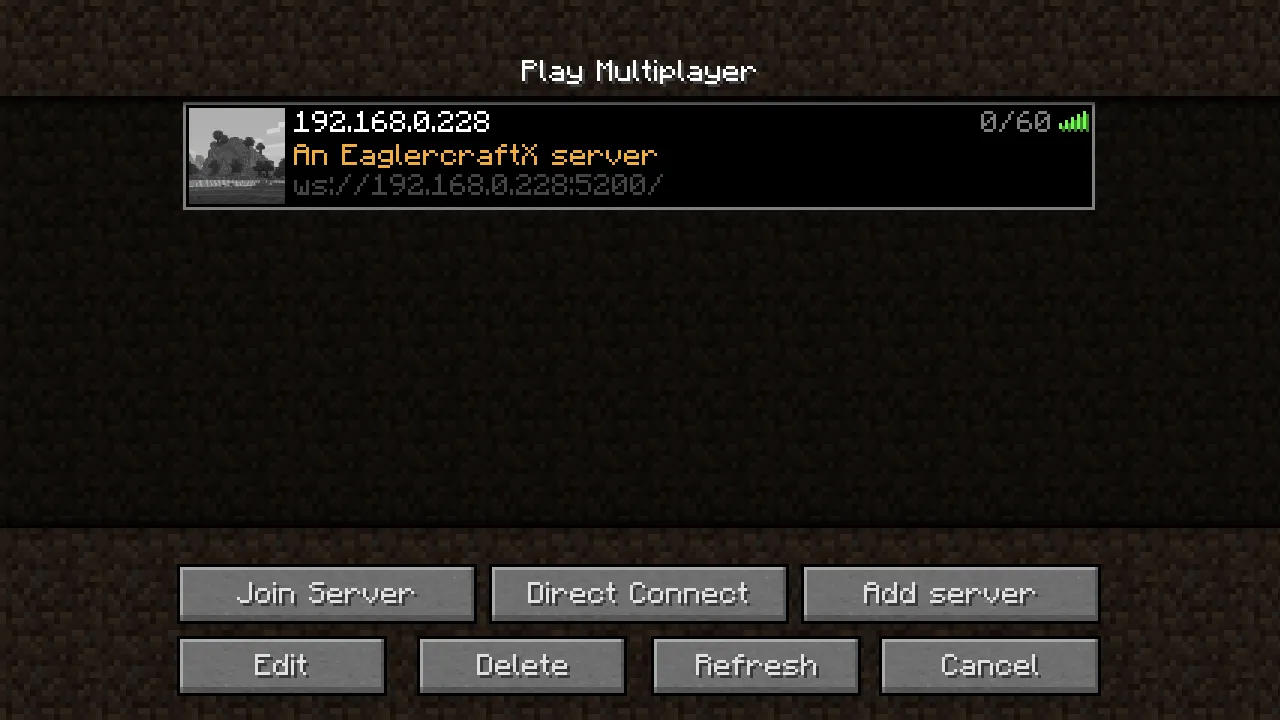 Eaglercraft Multiplayer server list showing the preconfigured entry, the An EaglercraftX server message of the day, and 0 of 60 slots in use.
Registration expects a command within 30 seconds of connecting. Press T, enter /register <player-password>, and press Enter. The chat confirms with Successfully registered, you are now logged in. Later visits use /login <player-password> with the same name and password.
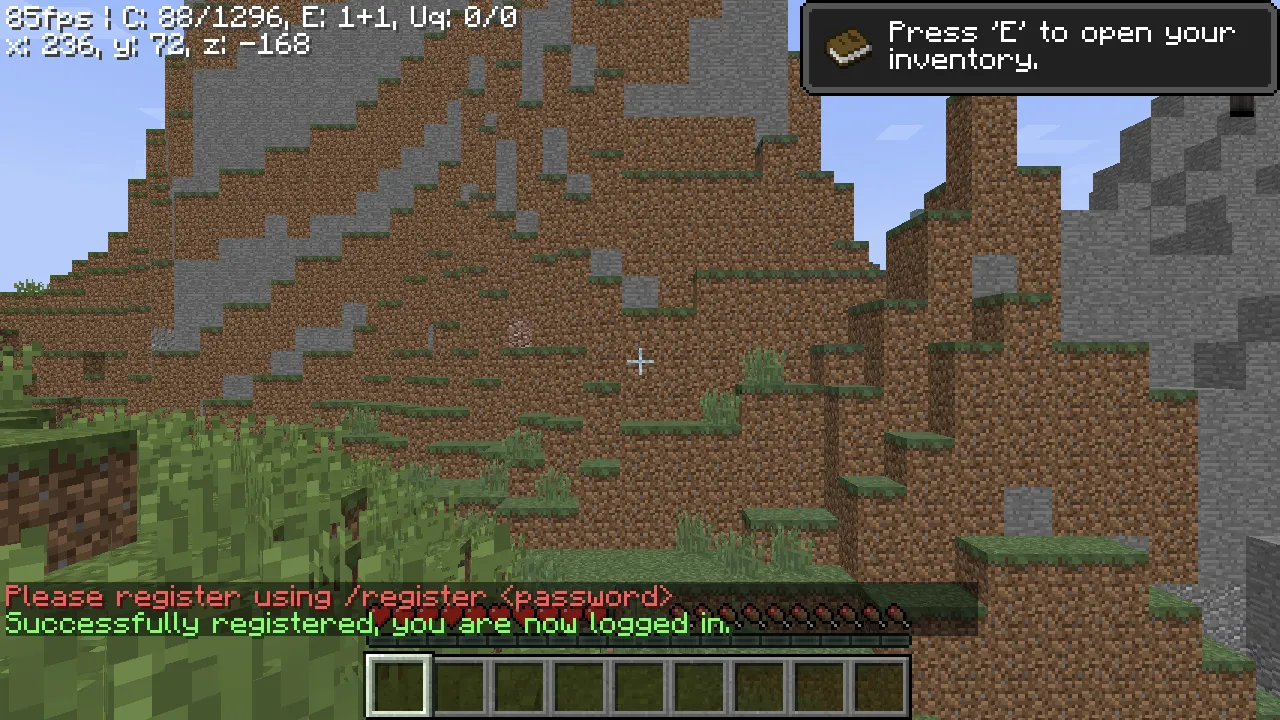 In-game chat in the Eaglercraft client showing the Please register using /register password prompt above the Successfully registered, you are now logged in confirmation.
The test run joined as ComposeTester, registered with /register, then logged back in after the recreation test below with the same password. The bundled LoginSecurity plugin stores accounts in a SQLite database under data/server-data/plugins-1.8/enabled/LoginSecurity/, keeping player accounts intact across container recreation alongside the world.
Two harmless log warnings appear on every start from bundled plugins: dynmap raises NoClassDefFoundError: org/bukkit/attribute/Attribute on Paper 1.8.8, and SimpleTpa runs an update check. The server operates normally despite both.
Recreate the Container Without Losing the World
This is the test that justifies the Compose path: remove the container and network completely, then start again against the same bind mount.
Save the world first, through the panel's RCON endpoint on the loopback interface:
The response reads {"success": true, "response": "Saving...Saved the world"}. Then remove and recreate:
In the recorded run, down removed the container and the eaglercraft_default network at 15:44:40, and up -d brought the stack back with the container reporting healthy about 45 seconds later. The open client session detected the removal immediately.
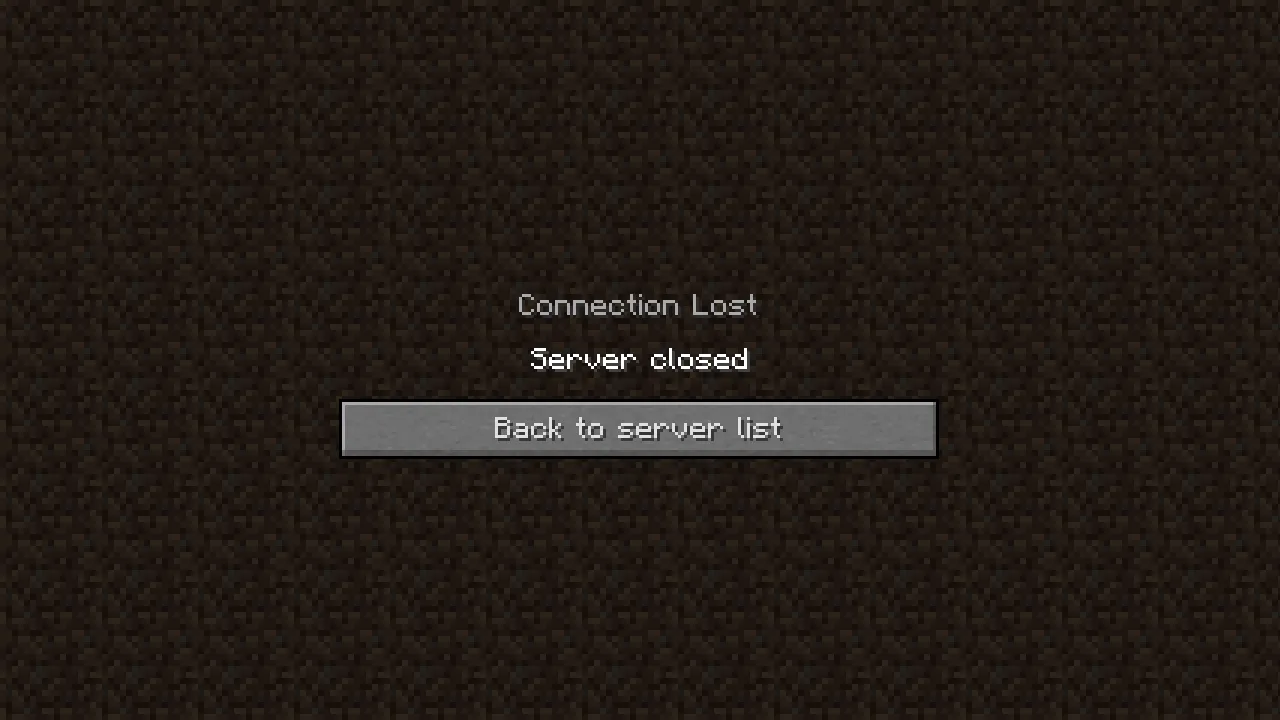 Eaglercraft client showing the Connection Lost screen with the Server closed message after docker compose down removed the container.
The data directory kept its 382 MB and the LoginSecurity database kept the ComposeTester bcrypt hash, so the browser rejoined with Please log in using /login <password>.
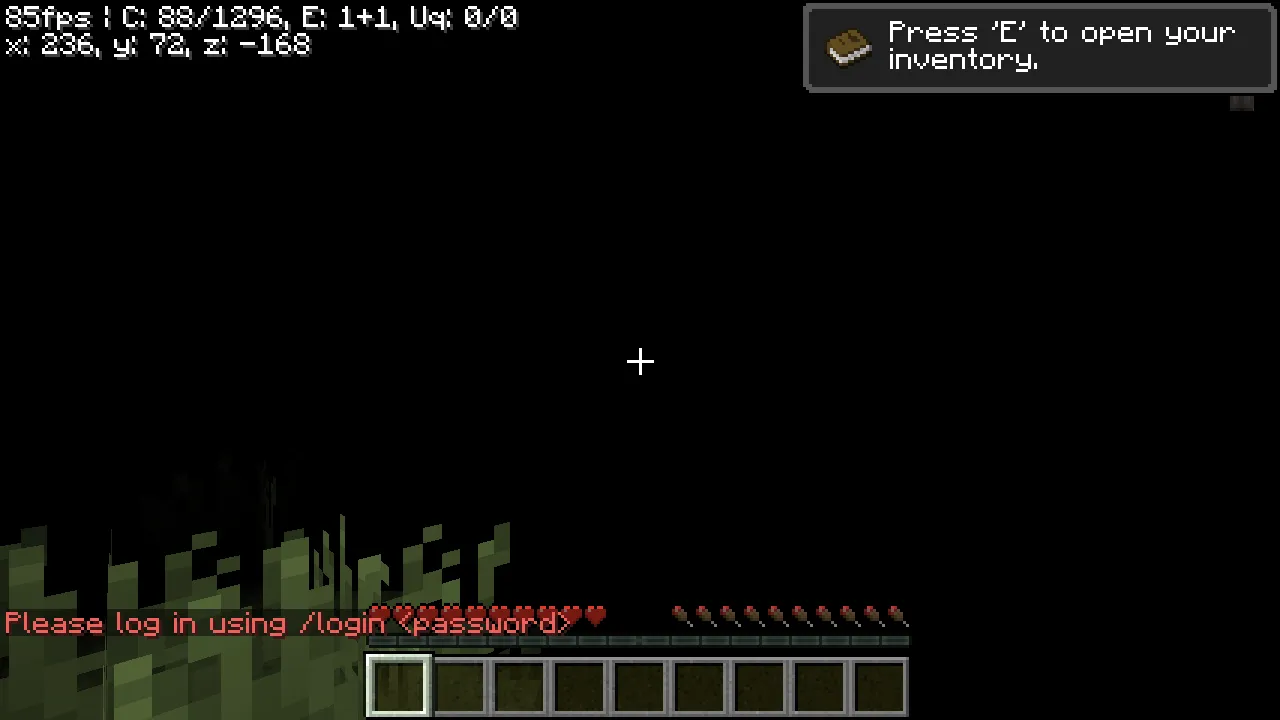 Rejoined Eaglercraft session showing the Please log in using /login password prompt after the container was recreated against the same data directory.
Logging in with the original password returned Successfully logged in.
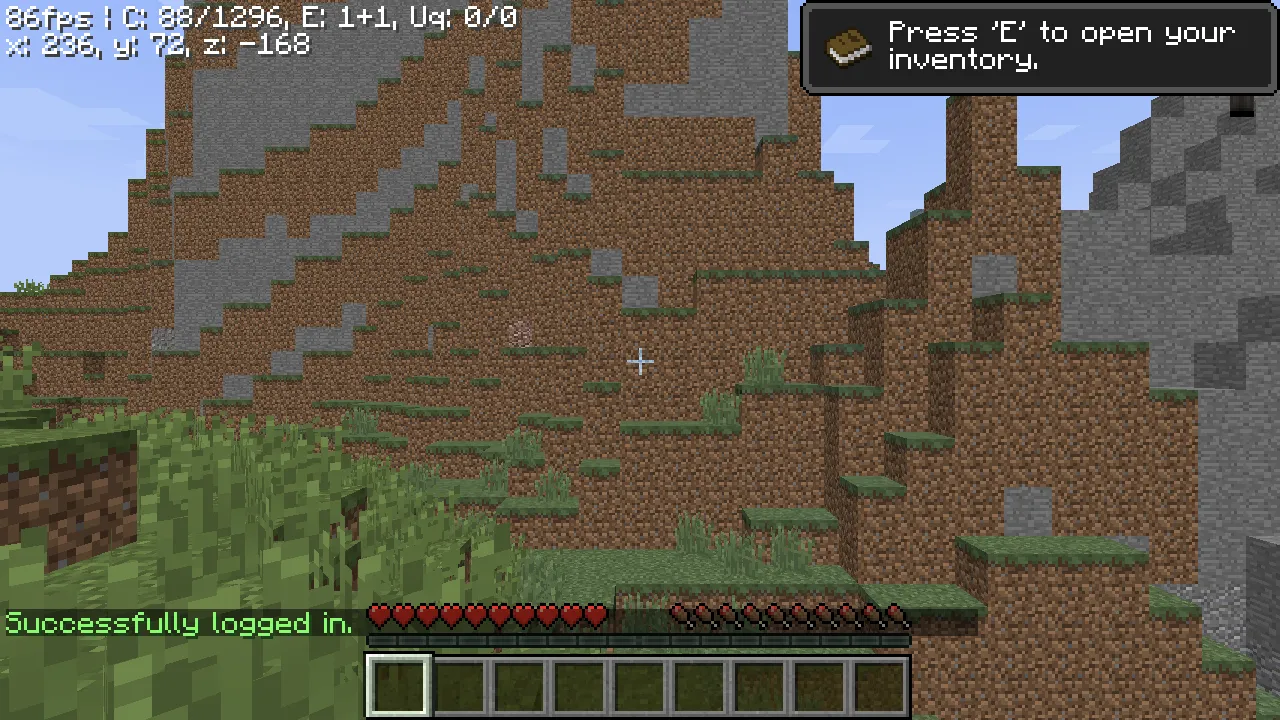 In-game chat confirming Successfully logged in after the player logged back in to the recreated Eaglercraft container.
Because the bind mount is a host directory, docker compose down removes only the container and network.
Back Up the Whole Data Directory
The bind mount makes backup a file-level operation. Ask the server to save first, then stop the stack and archive cold, so the copy captures a consistent world:
The response reads Saving...Saved the world. Stop the stack, archive cold, and start it again:
The recorded cold copies measured 275 MB for the full tree and 2.3 MB for the world directory alone, and the stack returned to healthy 42 seconds after start. For a verifiable backup, record checksums of the files that matter while the stack is stopped, and compare after any restore:
A nightly cron can wrap this save, stop, archive, and start sequence; the systemd path ships a timer for the same pattern, and cron on a Compose host can call the identical steps.
Rehearse the Restore
A backup you have never restored is only a guess. The drill restored the archive into an empty data directory and compared checksums:
The recorded run reported CHECKSUM-MATCH across all 35 tracked files, and the stack returned to healthy with the client page and panel answering 200 again. RCON list answered There are 0/20 players online: on the restored data.
For moving a world between two complete installs, archive data/server-1.8/world separately. The recorded secondary archive measured 3.2 MB for a fresh world. Restoring a partial tree into a non-empty directory triggers the safety guard described next.
Learn the Incomplete-Directory Guard
The image's entrypoint refuses to start on a data directory that is non-empty and incomplete. The drill tested it by starting with a directory holding one stray file, and again by restoring only server-1.8/world plus the LoginSecurity plugin into an otherwise empty directory. Both attempts made the container exit with:
Compose restarts the container in a loop while the message repeats in docker compose logs. The guard ensures a partial restore never masquerades as a healthy server or silently overwrites real data. Recovery is straightforward: stop the stack, empty the directory or restore a complete backup, and start again.
First starts follow a clear rule: empty directories initialize from the image, complete trees start as-is, and partial directories fail loudly.
Publish with the Caddy Overlay
For access beyond your LAN, the overlay in compose.caddy.yaml adds Caddy on ports 80 and 443:
Copy Caddyfile.example to Caddyfile and put your hostname in the first line:
Start the overlay with both files:
docker compose config confirms the merged contract: Caddy publishes 80 and 443 TCP plus 443 UDP (for QUIC), mounts the Caddyfile read-only, and keeps certificate state in the named volumes caddy_data and caddy_config, which survive recreation. The overlay also sets PUBLIC_GAME_URL, which the Server Management Panel reads to show visitors the correct join address.
Point the DNS A record at the host and open 80/443 in the firewall; Caddy then obtains a certificate on first request. The gateway requires the X-Real-IP header on every connection, which is exactly what the header_up line supplies, so a direct connection to 5200 that bypasses Caddy receives no response.
Behind Carrier-Grade NAT: Cloudflare Tunnel
When the ISP puts your host behind carrier-grade NAT, port forwarding and the Caddy overlay have no inbound path to serve. The alternative is a Cloudflare Tunnel: an outbound cloudflared connection carries visitor traffic from the edge network back to the stack, and the host keeps zero open ports:
Run cloudflared tunnel login, create a tunnel, and copy its token into the command above (or into a variable in .env). In the dashboard, route the placeholder hostname play.example.com to the tunnel and point the service at http://localhost:5200. Friends then join through https://play.example.com from any network, with TLS terminated at the edge. This branch is documented from its configuration: the walkthrough's internal host has a normal home router, so the run itself stays in the untested list below.
Troubleshoot the First Join
| What you see | Next check |
|---|---|
| Client page loads, the game never starts | The client bundle can arrive truncated on a slow link. Download http://<host-ip>:5200/classes.js and confirm the transfer reaches 8,699,873 bytes on image 2.2.7, then retry from a faster link or through the Caddy overlay. |
| Page loads, game connection fails | With the overlay, confirm header_up X-Real-IP {remote_host} is in the Caddyfile and restart Caddy. |
Login timed out! after 30 seconds | Reconnect and submit /register or /login within the 30 second window. |
Container exits: non-empty and incomplete | The data directory is partial; restore a complete backup or empty it for a fresh initialize. |
| Panel unreachable from another machine | Expected with the base file; use an SSH tunnel: ssh -N -L 5201:127.0.0.1:5201 user@your-host. |
port is already allocated on start | Another stack holds 5200/5201 or 80/443; stop it or change the published ports. |
| Save never returns | Use plain save-all; avoid save-all flush on Java 21 with Paper 1.8.8. |
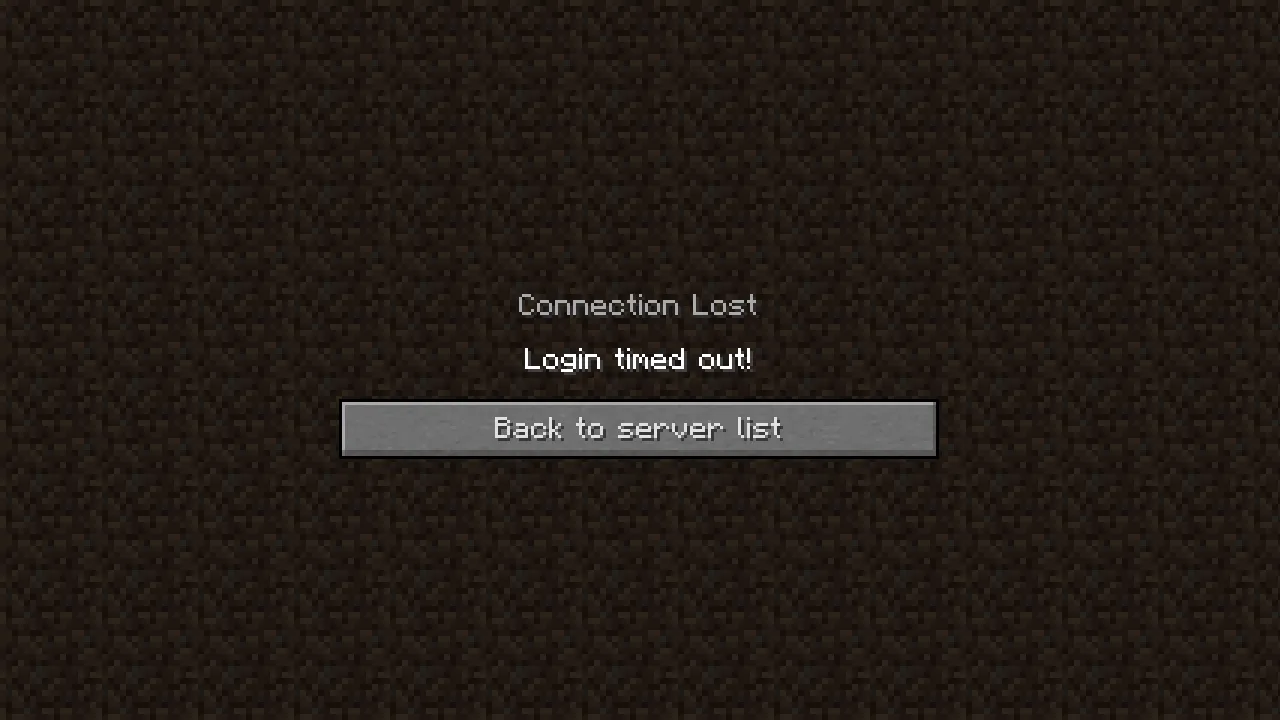 Eaglercraft browser client displaying the Login timed out error screen after the registration window expires.
What This Guide Did Not Test
This guide covers first start, browser join and registration, container recreation, a full-data backup and restore with checksums, the incomplete-directory guard, and the overlay configuration on one Ubuntu host. The following surfaces require your own verification for your environment:
- Public DNS resolution for a real hostname, Let's Encrypt certificate issuance, and live
wss://game traffic through the overlay. - A Cloudflare Tunnel run from a carrier-grade NAT environment.
- Inbound reachability from the public internet, including any provider firewall or security group in front of the machine.
- A join from an independent network outside the LAN.
- A second client joining simultaneously, and player capacity beyond one session.
- Upgrade from release 2.2.7 to a future image tag; the data contract is designed for it, and the drill verified recreation on the same tag only.
- The
MINECRAFT_VERSION=1.12variant, and ARM hosts; the image publisheslinux/amd64.
Where Sealos Fits
The steps above hand you a Compose host, a persistent data directory, and a rehearsed backup path. Running them yourself suits a server you already administer and want to keep under docker compose.
| Concern | Local Compose host | Sealos template |
|---|---|---|
| Deployment | Read the Compose files, prepare the host, docker compose up -d | Pick the Eaglercraft template, fill the form, deploy |
| Updates | Pull the new image tag and recreate against the same data directory | Redeploy the template app; the volume persists |
| Backups | Your own save, stop, and archive schedule on the bind mount | Persistent volume; archive its contents with the platform tools |
| Public entry | Caddy overlay with a DNS record, or a Cloudflare Tunnel | Managed HTTPS ingress on the template URL |
| Management panel | Loopback-only port reached through an SSH tunnel | Built into the template console |
The Eaglercraft template on Sealos packages the same client, gateway, Paper, and admin console behind one deployment form, with a persistent volume for the world and no Docker host to maintain. The setup walkthrough covers that path, the Ubuntu VPS guide covers the systemd path, and Eaglercraft Hosting Costs compares what each path costs to run.
Opens the Eaglercraft template in a new tab.