sealos.io
Metabase
Build production-ready database templates with Sealos.

https://www.metabase.com/deploy now
Metabase
Database
Open source business intelligence and analytics platform for dashboards, SQL exploration, and self-service reporting.

Open-source, self-hosted SQL IDE. A web-based client to browse, query, and manage your SQL databases.
Launch in your Sealos workspace.
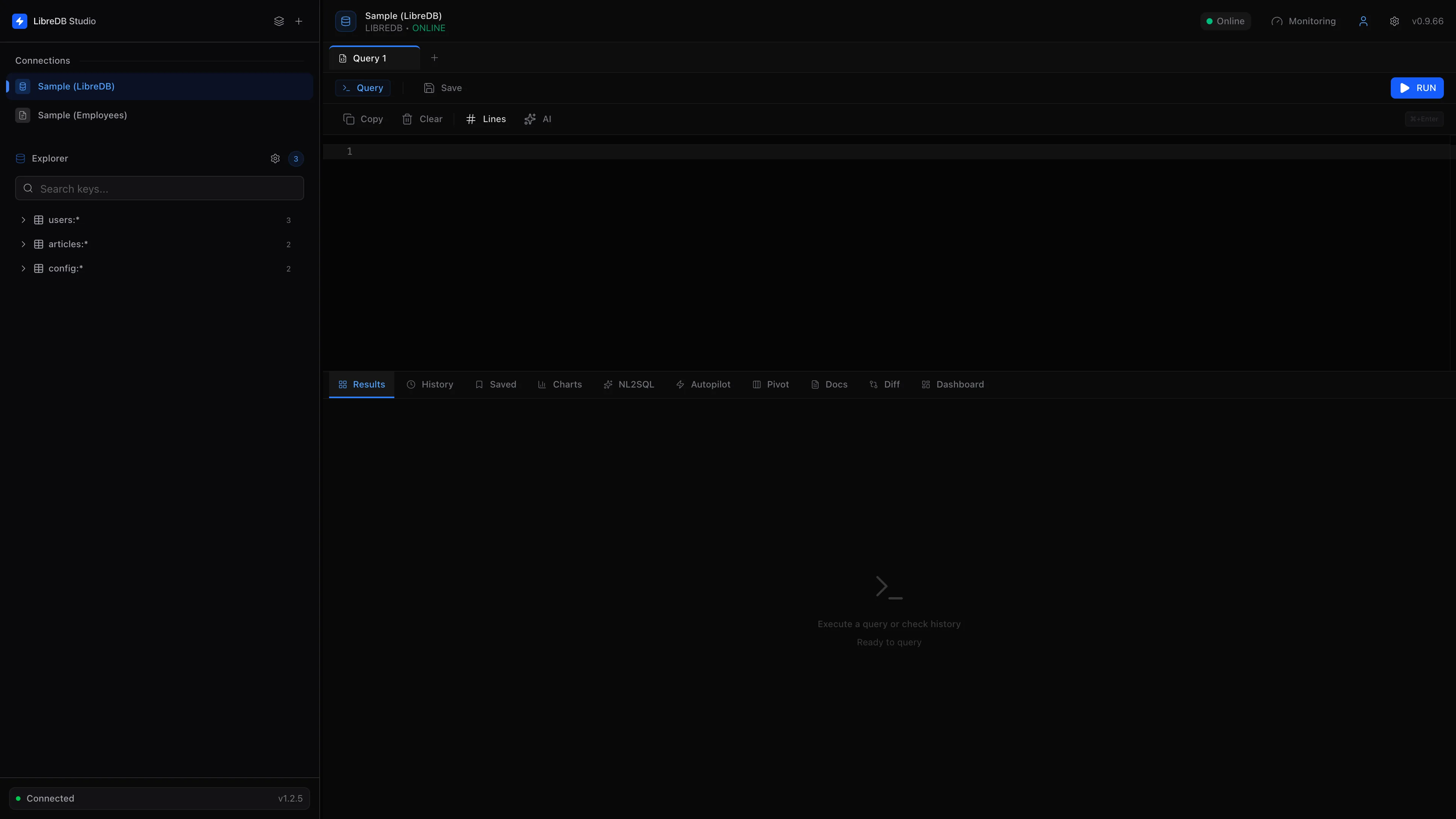
Start with the resources defined by the LibreDB Studio template. Review CPU, memory, persistent storage, and network allocations for every service in Canvas. Capacity needs depend on your data and workload; monitor usage as they grow.
Template configuration and setupUse the application URL or connection details shown in Canvas. Follow the deployment guide for first-time account setup or client configuration, and keep generated credentials available for that step.
Sealos monthly plans include compute, memory, storage, and traffic. Size your plan for all deployed services. Software licenses and external AI or API services may have separate terms and charges. Confirm the applicable plan and optional charges in Cost Center.
Compare Sealos resource plansFor current cloud charges, refer to Sealos plan pricing. Upstream documentation may reference earlier billing models.
LibreDB Studio is an open-source database IDE for querying and managing PostgreSQL, MySQL, SQLite, MongoDB, and other supported data sources from a browser. This template deploys LibreDB Studio 0.14.1 with HTTPS access, persistent server-side storage, health probes, and deployment-defined administrator credentials on Sealos Cloud.
LibreDB Studio provides a web editor, schema explorer, result viewer, connection manager, monitoring pages, and administrative tools in one application. The default deployment stores saved application state in SQLite on a 1 GiB persistent volume. A deployment option provisions a dedicated KubeBlocks-managed PostgreSQL database for shared server-side state.
The PostgreSQL option stores LibreDB Studio settings such as saved connections and queries. Databases that you want to inspect remain separate data sources and can be added from the LibreDB Studio interface after login.
The template includes the runtime components required for a working deployment:
ghcr.io/libredb/libredb-studio:0.14.1/app/data/libredb-storage.db on a 1 GiB application PVCpostgresql-16.4.0 with a 1 GiB data PVC3000Architecture components:
/app/data.libredb_storage initialization Job, and a database readiness init container./login page./api/db/health endpoint for startup, readiness, and liveness probes.Resource baseline:
Live Sealos testing established 100m CPU and 128Mi memory as the lowest stable application tier. The PostgreSQL initialization containers and Job use the same tier. The optional PostgreSQL cluster uses 500m CPU and 512Mi memory. Both storage modes passed cold start, administrator login, UI navigation, server storage write/read, query execution, and restart persistence checks.
Security defaults:
The application runs as a non-root user, drops Linux capabilities, disables service account token mounting, and receives a generated JWT signing secret. Administrator credentials come from required deployment inputs.
Sealos combines Kubernetes deployment, networking, storage, and visual operations in one cloud workspace:
/login.LibreDB Studio uses a sign-in-only account model for this deployment. The template provisions the administrator from the deployment form.
/login.Store the deployment credentials in your password manager. Credential changes can be applied from the LibreDB Studio StatefulSet environment variables in Canvas, followed by a workload restart.
| Input | Description | Status | Default |
|---|---|---|---|
admin_email | Administrator email used on the login page | Required | Set during deployment |
admin_password | Administrator password, minimum 8 characters | Required | Set during deployment |
enable_postgres_storage | Provisions PostgreSQL for LibreDB Studio server-side state | Optional | false (SQLite) |
The template generates the application name, public host, and JWT signing secret. SQLite data is stored at /app/data/libredb-storage.db. PostgreSQL mode creates the libredb_storage database and builds the connection URL from the KubeBlocks credential Secret.
The template keeps one LibreDB Studio replica and supports vertical scaling from Canvas. Increase application CPU or memory for more concurrent sessions or heavier result sets. Expand the application PVC for SQLite mode, or the PostgreSQL data PVC for PostgreSQL mode, as stored state grows.
A multi-replica design requires PostgreSQL server storage plus a review of session handling and application behavior. The published template uses the verified single-replica topology.
Confirm that the email and password match the values entered during deployment. Review ADMIN_EMAIL and ADMIN_PASSWORD on the StatefulSet resource card, apply the intended values, and restart the workload.
Open Canvas and check the LibreDB Studio StatefulSet. In PostgreSQL mode, also confirm that the PostgreSQL cluster is Running and the -pg-init Job is Complete.
In SQLite mode, confirm that the application PVC is bound and mounted at /app/data. In PostgreSQL mode, confirm that the cluster is healthy and the STORAGE_PROVIDER value is postgres.
Use a database hostname that is reachable from the Sealos workspace, verify the port and credentials, and select the TLS settings required by the target database.
LibreDB Studio is licensed under the MIT License. This Sealos template follows the license of the templates repository.
A shorter path from an app you want to an app you can run. Sealos brings deployment and ongoing operations into one place.
Start with a ready-made template. Review its configuration and launch from the Sealos console.
Run on managed infrastructure with built-in workload scheduling and recovery.
Give your application a public HTTPS endpoint with certificates managed for you.
Keep application data on persistent volumes across container restarts.
Adjust CPU, memory, and replicas from the console as your workload changes.
Sealos provisions the resources defined by your template and brings them together in your workspace.
Container workloads with configurable CPU, memory, and replicas.
An address for your app, with managed TLS certificates.
A database provisioned alongside your app when the template calls for one.
Storage for the files and data your application needs to keep.
Application settings and secrets configured in one place.
Inspect container logs and resource usage from the console.
Resources and their configuration vary by template. Review the deployment form for this app’s exact setup.
Explore more production-ready templates.
Build production-ready database templates with Sealos.
Open source business intelligence and analytics platform for dashboards, SQL exploration, and self-service reporting.
Build production-ready database templates with Sealos.

Bytebase is GitLab/GitHub for Database DevOps, built for developers, DBAs and platform teams.
Build production-ready database templates with Sealos.

Turn relational data into collaborative tables, views, and forms with NocoDB on Sealos. Start with persistent SQLite storage or select managed PostgreSQL.