sealos.io
AFFiNE
Build production-ready tools templates with Sealos.
https://affine.pro/deploy now
AFFiNE
Tools
A privacy-focused, local-first, open-source workspace for notes, docs, whiteboards, and team knowledge management.
Open Source Identity and Access Management solution for modern Applications and Services
Launch in your Sealos workspace.
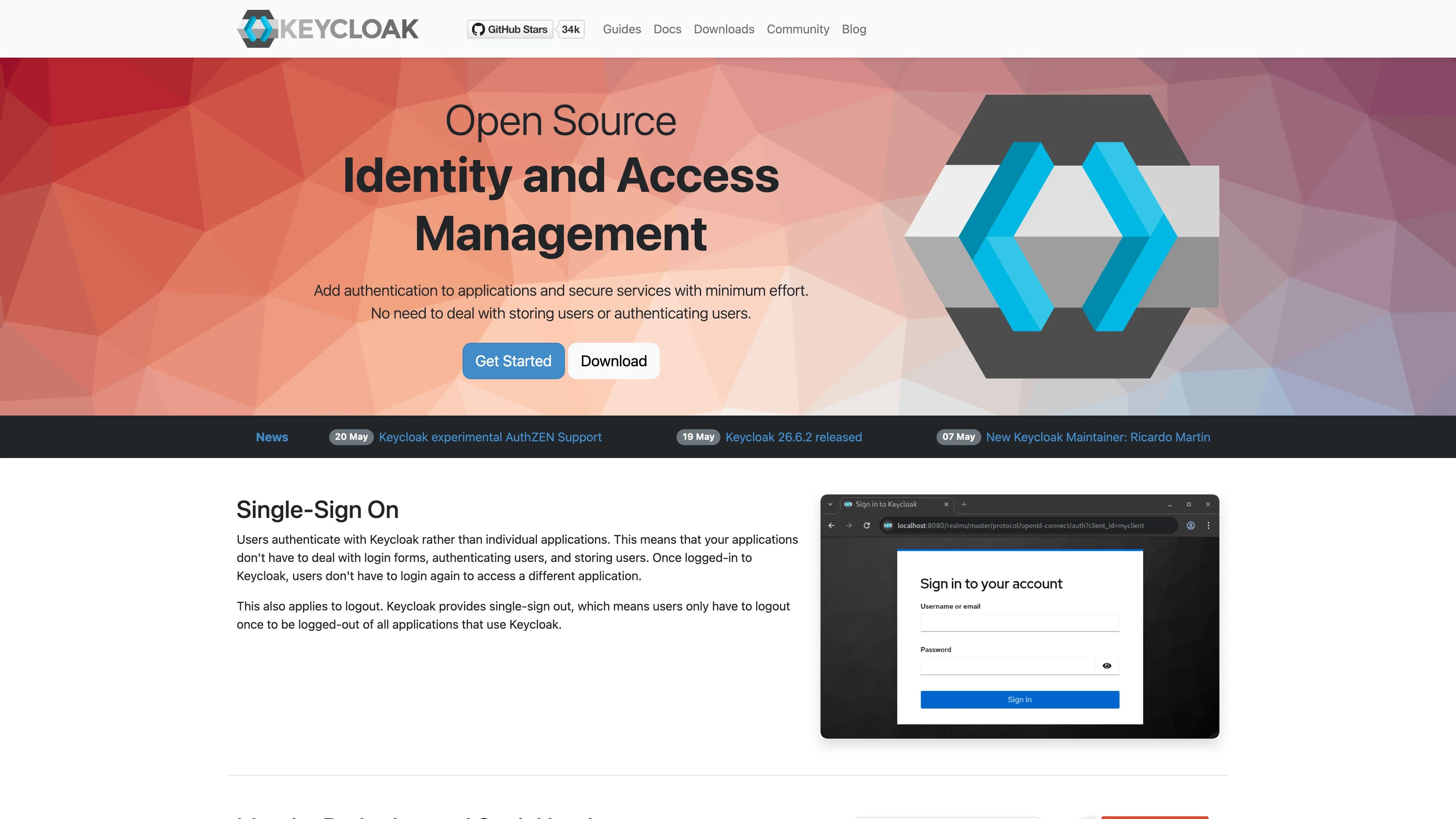
Start with the resources defined by the Keycloak template. Review CPU, memory, persistent storage, and network allocations for every service in Canvas. Capacity needs depend on your data and workload; monitor usage as they grow.
Template configuration and setupUse the application URL or connection details shown in Canvas. Follow the deployment guide for first-time account setup or client configuration, and keep generated credentials available for that step.
Sealos monthly plans include compute, memory, storage, and traffic. Size your plan for all deployed services. Software licenses and external AI or API services may have separate terms and charges. Confirm the applicable plan and optional charges in Cost Center.
Compare Sealos resource plansFor current cloud charges, refer to Sealos plan pricing. Upstream documentation may reference earlier billing models.
Keycloak is an open-source identity and access management platform for securing applications and services. This template deploys Keycloak 26.7.0 with a persistent KubeBlocks PostgreSQL 16.4 database on Sealos.
Keycloak provides centralized sign-in, single sign-on, user federation, identity brokering, multi-factor authentication, and standards-based OpenID Connect, OAuth 2.0, and SAML integration. A realm isolates users, clients, roles, groups, authentication policies, and sessions for one organization or environment.
This template creates a public HTTPS endpoint for the Keycloak Admin Console and authentication APIs. Realm configuration and identity data are stored in PostgreSQL so they survive application restarts.
The Sealos template provisions:
keycloak database.Keycloak connects to PostgreSQL through the credentials generated by KubeBlocks. Health checks use Keycloak's management port and the official /health/started, /health/ready, and /health/live endpoints.
The template was live-tested with this minimum resource profile:
| Component | CPU limit | Memory limit | Storage |
|---|---|---|---|
| Keycloak | 200m | 1024Mi | - |
| PostgreSQL | 500m | 512Mi | 1Gi |
| Initialization containers and Job | 100m | 128Mi | - |
A 100m Keycloak CPU limit produced recurring blocked-thread warnings during cold start. The 200m / 1024Mi profile completed database migration, administrator login, realm creation, user creation, a random 404 request, and a stable log window with zero restarts. Larger realms and higher authentication traffic should receive additional CPU and PostgreSQL capacity.
Keycloak is licensed under the Apache License 2.0. This Sealos template packages deployment configuration and keeps the upstream license unchanged.
The admin_username and admin_password deployment inputs create a temporary bootstrap administrator in the master realm. Open https://<app-host>/admin/ and sign in with these values.
Use the bootstrap account to create a permanent server administrator:
master realm.admin realm role, and verify the account in a new browser session.The master realm manages the Keycloak server. Create separate realms for application users and clients.
Create users from Users inside the target realm. Realm administrators control self-service registration through Realm settings > Login > User registration. Each application integrates with a client created in its realm and uses that realm's OpenID Connect, OAuth 2.0, or SAML endpoints.
| Parameter | Default | Required | Description |
|---|---|---|---|
admin_username | User supplied | Yes | Initial bootstrap administrator username for the master realm. |
admin_password | User supplied | Yes | Initial bootstrap administrator password. Store it securely and rotate to a permanent administrator account after first login. |
The public application URL is generated by Sealos and configured as Keycloak's hostname. PostgreSQL connection values come from the KubeBlocks credential Secret.
This template uses one Keycloak replica and one PostgreSQL replica. Production environments with strict availability objectives should plan a tested multi-replica Keycloak and highly available PostgreSQL topology.
admin_username and admin_password values entered during deployment.master realm.admin realm role.https://<app-host>/realms/<realm-name>.This Sealos template follows the templates repository license. Keycloak is licensed under the Apache License 2.0.
A shorter path from an app you want to an app you can run. Sealos brings deployment and ongoing operations into one place.
Start with a ready-made template. Review its configuration and launch from the Sealos console.
Run on managed infrastructure with built-in workload scheduling and recovery.
Give your application a public HTTPS endpoint with certificates managed for you.
Keep application data on persistent volumes across container restarts.
Adjust CPU, memory, and replicas from the console as your workload changes.
Sealos provisions the resources defined by your template and brings them together in your workspace.
Container workloads with configurable CPU, memory, and replicas.
An address for your app, with managed TLS certificates.
A database provisioned alongside your app when the template calls for one.
Storage for the files and data your application needs to keep.
Application settings and secrets configured in one place.
Inspect container logs and resource usage from the console.
Resources and their configuration vary by template. Review the deployment form for this app’s exact setup.
Explore more production-ready templates.
Build production-ready tools templates with Sealos.
A privacy-focused, local-first, open-source workspace for notes, docs, whiteboards, and team knowledge management.
Build production-ready tools templates with Sealos.

Google Chrome browser running in a LinuxServer.io Selkies container with a web-based desktop UI.
Build production-ready tools templates with Sealos.
Deploy the self-hosted DeeplX translation API on Sealos and connect applications to its HTTP endpoint. This independent gateway integrates with DeepL translation.