Deploy and Host 7 Days to Die on Sealos
7 Days to Die is a multiplayer survival and crafting game. This template hosts a private dedicated server on Sealos using vinanrra/7dtd-server:v0.9.3, LinuxGSM, and persistent world saves.
About Hosting 7 Days to Die
The template runs one server with the built-in Navezgane world and four player slots by default. SteamCMD downloads the current stable dedicated server during startup, and LinuxGSM handles the server process and graceful shutdown.
Sealos provisions a 1 GiB persistent save volume and native TCP/UDP access. A small initialization step reserves consecutive public ports and configures the same ports in the game. Server readiness requires a successful game query after installation and world startup.
Common Use Cases
- Private co-op: Explore, build, and survive with a small group of friends.
- Persistent campaigns: Keep the same world and player progress across Pod replacements.
- Dedicated hosting: Run the server independently of a player's game client.
Dependencies for 7 Days to Die Hosting
The container includes LinuxGSM, SteamCMD, and the tools needed to install the dedicated server. Players need a compatible licensed game client.
Implementation Details
| Component | Configuration |
|---|
| Game server | One StatefulSet running vinanrra/7dtd-server:v0.9.3 |
| CPU and memory limits | 4 CPU cores and 8192 MiB, matching the documented dedicated server minimum |
| Save storage | 1 GiB at /home/sdtdserver/.local/share/7DaysToDie/Saves |
| Rebuildable installation | 20 GiB of container storage for SteamCMD and game files |
| Native network | Dedicated <app-name>-nodeport Service: base port on TCP and UDP, plus the next three UDP ports |
| Port allocation | An init container with permission to read and patch only this application's Service |
| Administration | Local Telnet on 127.0.0.1:8081, available from the container terminal |
The <app-name>-nodeport Service starts as ClusterIP. Before the game starts, the init container atomically promotes it to NodePort with four consecutive public ports. This keeps the native game ports together and preserves their allocation across Pod restarts.
The server uses a generated password and stays hidden from the public server list. Web administration and cross-platform console support are disabled. The selected upstream runtime uses local saves; this template provisions those saves directly.
Game installation files use the container's writable storage. Every Pod replacement downloads them again, while the persistent volume preserves world and player saves. Monitor save usage and expand the volume before it fills, especially as players explore more of the map. The template starts with one server replica; increase CPU, memory, and storage for a growing campaign.
Why Deploy 7 Days to Die on Sealos?
Sealos provides one-click deployment on Kubernetes, persistent storage, native public ports, and resource monitoring. Pay-as-you-go resources can be adjusted from Canvas through the AI dialog or resource cards as the group and world grow.
Deployment Guide
- Open the 7 Days to Die template and click Deploy Now.
- Set the server name and maximum player count. The template accepts 1-8 players and defaults to four.
- Wait for Sealos to provision the resources, typically 2-3 minutes. The initial SteamCMD download and game startup require additional time. Follow the server logs on Canvas until the workload becomes Ready.
- Open the server's network resource card and copy its public host and the
game-tcp or game-udp port. Both use the same base port. Use the assigned public port when connecting.
- Open the server resource card's environment settings and retrieve
ServerPassword. Share the host, base port, and password with your players.
- In a compatible PC game client, choose Join a Game, then Connect to IP, enter the public host and base port, and enter the generated password when prompted.
Connections and authentication happen in the game client. The deployment provides a native game server, with management available through Canvas and the container terminal.
Configuration
Use the Canvas AI dialog or resource cards to change resources and environment settings. ServerName controls the displayed name, ServerMaxPlayerCount controls the player limit, and ServerPassword controls admission. Apply changes with a Pod restart and allow the game download to complete.
For console administration, open the container terminal and run:
telnet 127.0.0.1 8081
Useful commands include listplayers and saveworld. The Telnet interface listens on loopback and is accessible from inside the container.
Troubleshooting
Startup remains pending: Check logs for SteamCMD download progress or Steam connection errors. Startup includes game installation, so network conditions affect how long it takes.
A client cannot join: Verify that the client matches the installed stable server version, use the public base port from the resource card, and allow the four consecutive UDP ports on any client-side firewall. The password is available as ServerPassword in the server environment settings.
Save storage fills: Expand the save volume from Canvas and keep an external backup of the Saves directory. Larger groups, extensive exploration, and additional worlds require more storage.
License
The Docker packaging project is licensed under GPL-3.0. 7 Days to Die is proprietary software owned by The Fun Pimps and remains subject to its game license terms.
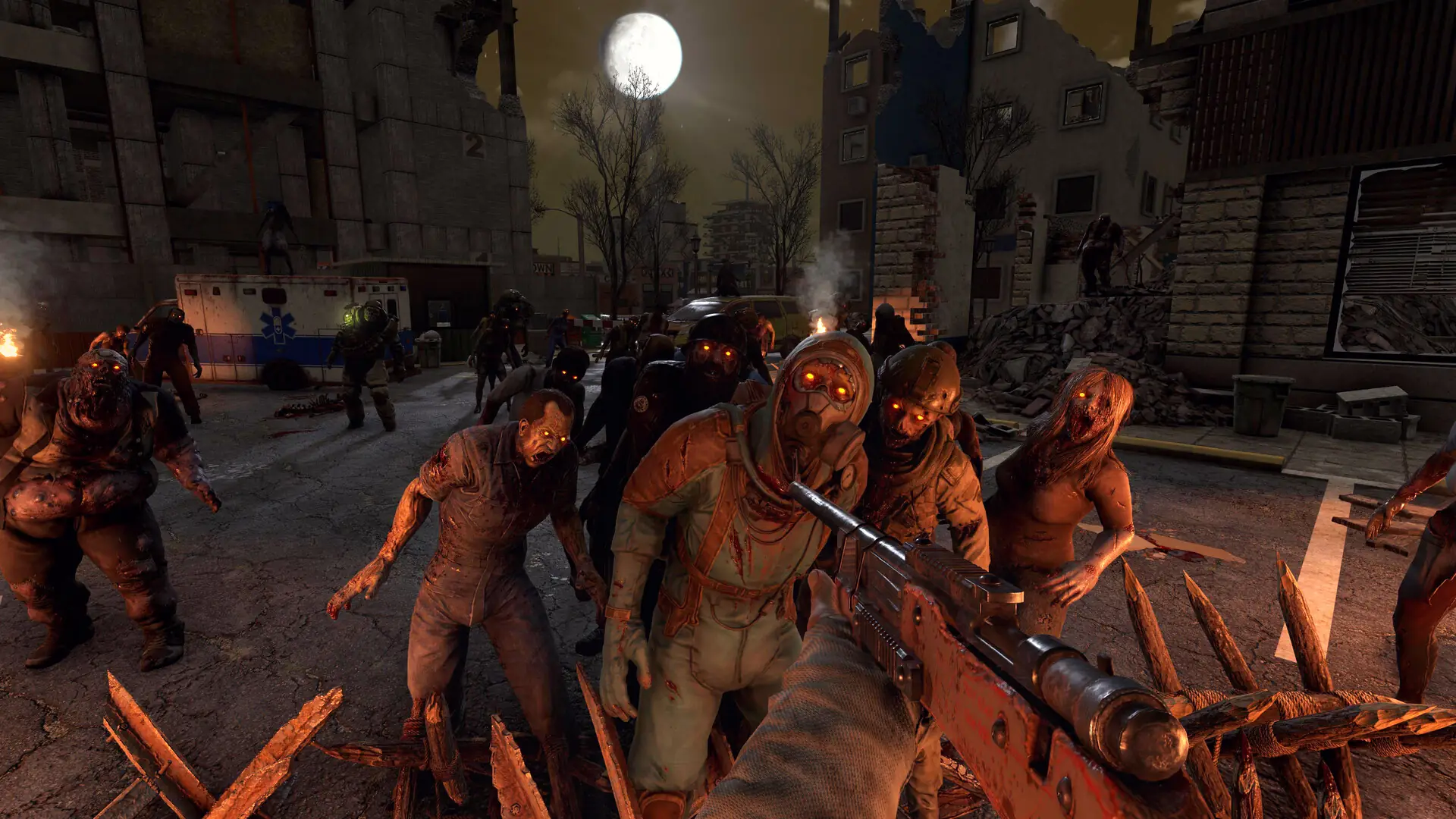
Artwork sources: official game logo and publisher-provided in-game screenshot, from the official Steam listing.